How to Repost on Instagram in 2026 (Stories, Feed, Reels)
Repost on Instagram step by step — Stories, Feed posts, and Reels. Here's exactly how to do it in 2026.

TL;DR
Instagram’s repost feature lets you share public Reels and Feed posts directly to your own followers. You tap the repost icon, optionally add a comment, and the content appears both in your feed and in a dedicated Reposts tab on your profile.
But reposting is not always as straightforward as it sounds. Some Stories cannot be reshared at all. Some posts simply do not show a repost button. And reposting without giving credit is a fast way to get reported or to quietly damage a relationship with another creator.
Here is the quick version. For Stories, tap Add to your story only when you have actually been tagged. For Feed posts and Reels, tap the repost icon, which looks like two circular arrows. Always credit the original creator regardless of the format.
Bottom line, reposting is still one of the fastest ways to create content without technically creating new content from scratch. This guide shows exactly how to do it properly for every content type Instagram supports.
Introduction
Most people eventually discover that Instagram has created a proper way to reshare content, somewhere between screenshotting a friend’s Story with slightly blurry results and manually downloading a Reel just to upload it again. The feature exists, it works reasonably well, and yet a surprising number of people still do it the hard way, either because they never noticed the button or because the rules around who can repost what are genuinely a bit confusing.
Reposting is one of the fastest ways to keep a feed active without producing something entirely new every single day, whether that means sharing a customer’s glowing testimonial, amplifying a great post from someone in your niche, or simply passing along a Story a friend tagged you in. The catch is that Instagram’s repost rules are not always intuitive, and getting them wrong can mean lower quality shares, missed credit, or content that just will not repost at all no matter which button you tap.
This guide walks through exactly how reposting works across Stories, Feed posts, and Reels in 2026, including the workarounds for content you were not tagged in, the reasons a repost sometimes fails entirely, and the etiquette worth following so reposting builds goodwill instead of resentment.

How to Repost a Story on Instagram in 2026
Reposting a Story is genuinely the simplest form of sharing available on Instagram, provided the right conditions are already in place.
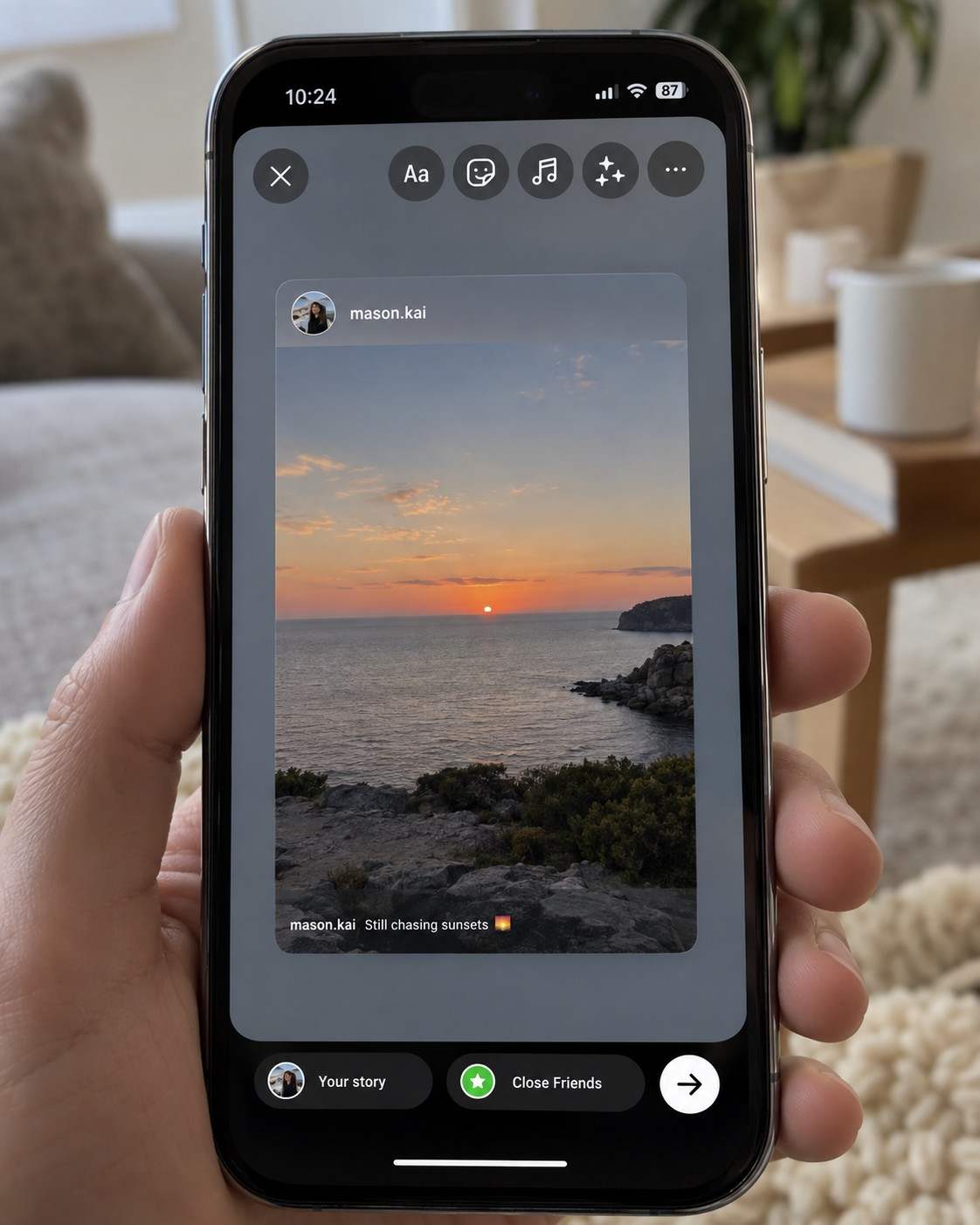
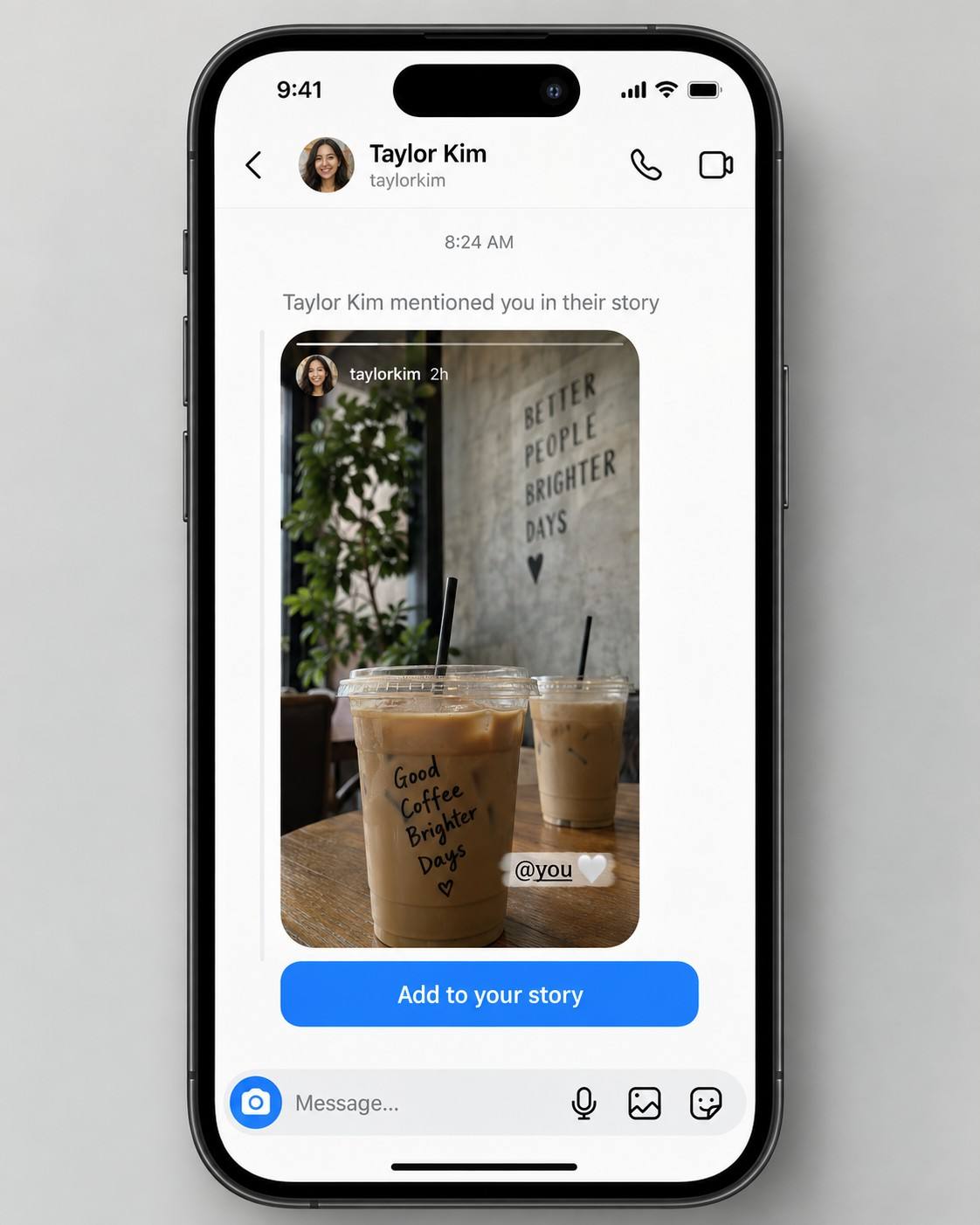
When you are tagged in a Story, the process is quick. You will receive a DM notification from the person who tagged you. Opening that DM shows an option at the bottom that says Add the post to your story. Tapping it opens the Story directly in the editor, where you can further customise it if you want, adding stickers, text, or drawings before sharing. Tapping Your Story then shares it, and the original creator gets automatically credited in the process.
When someone mentions your account more generally, the process is similar. Checking your mentions under the Activity tab will show if someone mentioned you in a Story, and you will see the same. You can also add to your story from there, following the same steps described above.
The key limitation to remember is that you can only repost Stories that tag you directly. If you were not tagged, the direct repost option simply is not available, and you will need one of the workarounds covered further down this guide.
https://youtu.be/HugFE2EEwKY?si=iP86LfkenMRtXeVh
How to Repost Someone Else’s Instagram Story to Your Story
Reposting a Story when you were not tagged requires a bit of a workaround, since Instagram does not offer a direct button for this situation by default.
Option 1: Ask for permission
The most straightforward and respectful path is simply asking. Sending a DM to the creator and requesting that they either tag you directly or send you the video file gives you a clean, fully permitted way to repost their content without any ambiguity.
Option 2: Screenshot or screen record
Taking a screenshot of the Story and posting it to your own Story with clear credit attached is a common fallback, though it does come with a real tradeoff in image quality compared to a native repost, and it should always be paired with visible credit to the original creator.
Option 3: Use the share feature where available
Some public accounts allow resharing more broadly, and in those cases you may still see an Add to your story option at the bottom of the Story even without a direct tag. It is worth checking before assuming a workaround is necessary.
Option 4: Share the linked post instead
If the Story in question is tied to an existing feed post, sharing that underlying post to your Story instead can sometimes achieve a similar effect without needing to screenshot anything at all.
The core limitation across all four options is the same. Instagram does not allow resharing Stories that do not tag you unless the original creator has specifically toggled on Allow resharing to Stories in their own settings.
What are the best tools for reposting content on Instagram? Social by InstantDM can help plan reposted content alongside your own original posts. Later and Buffer both support scheduling reshared content once you already have it. For Stories specifically, Instagram’s own native features remain the primary and most reliable method.

How to Repost an Instagram Post, Reel or Carousel
Reposting Feed posts and Reels is genuinely straightforward in 2026, and each format follows a slightly different but equally simple process.
For Reels
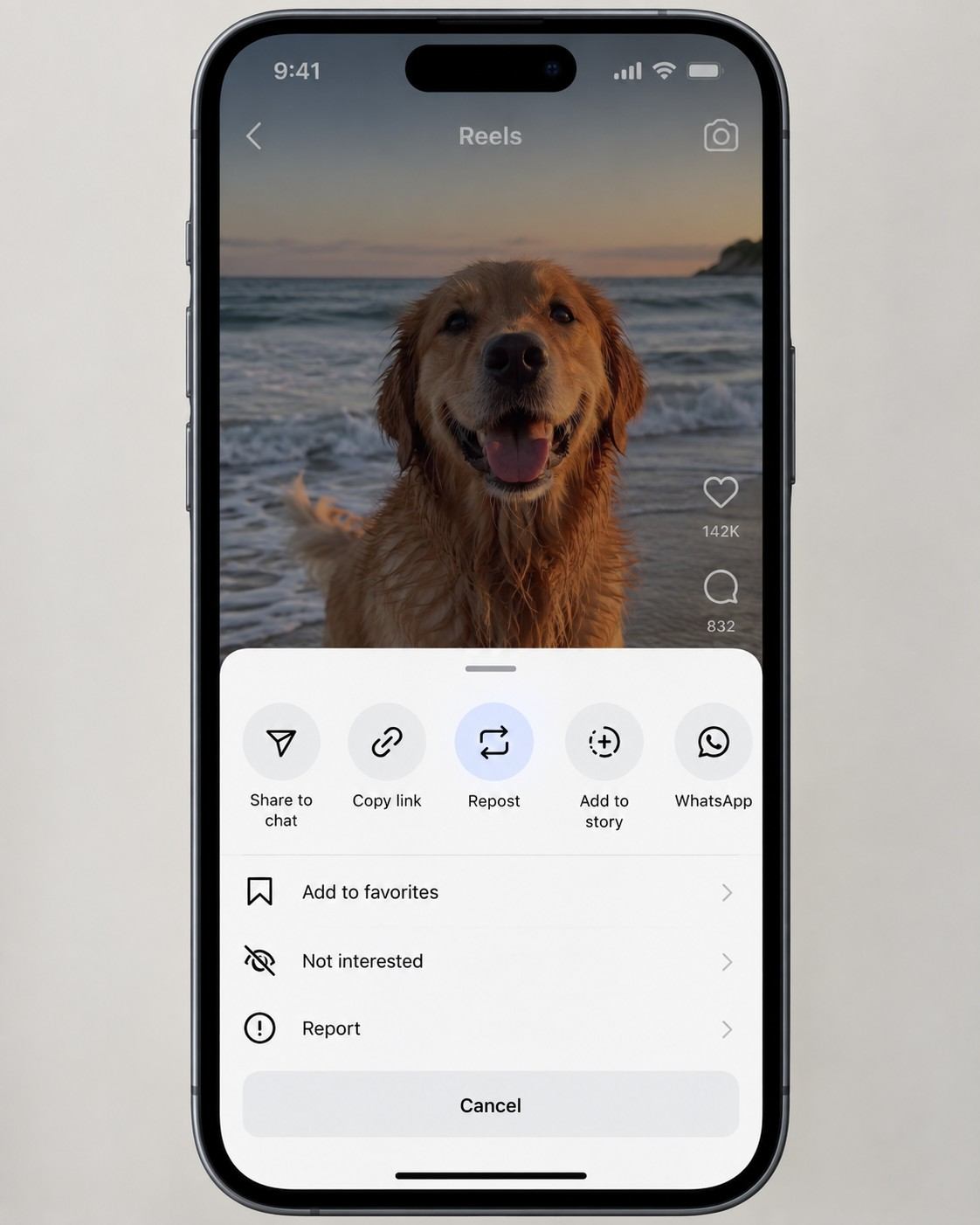
Find the Reel you want to repost, then tap the share icon, which looks like a paper airplane, sitting below the video. Selecting Repost from the menu that appears lets you add an optional comment before tapping Repost itself, at which point the content appears in both your feed and your followers’ feeds.
For feed posts
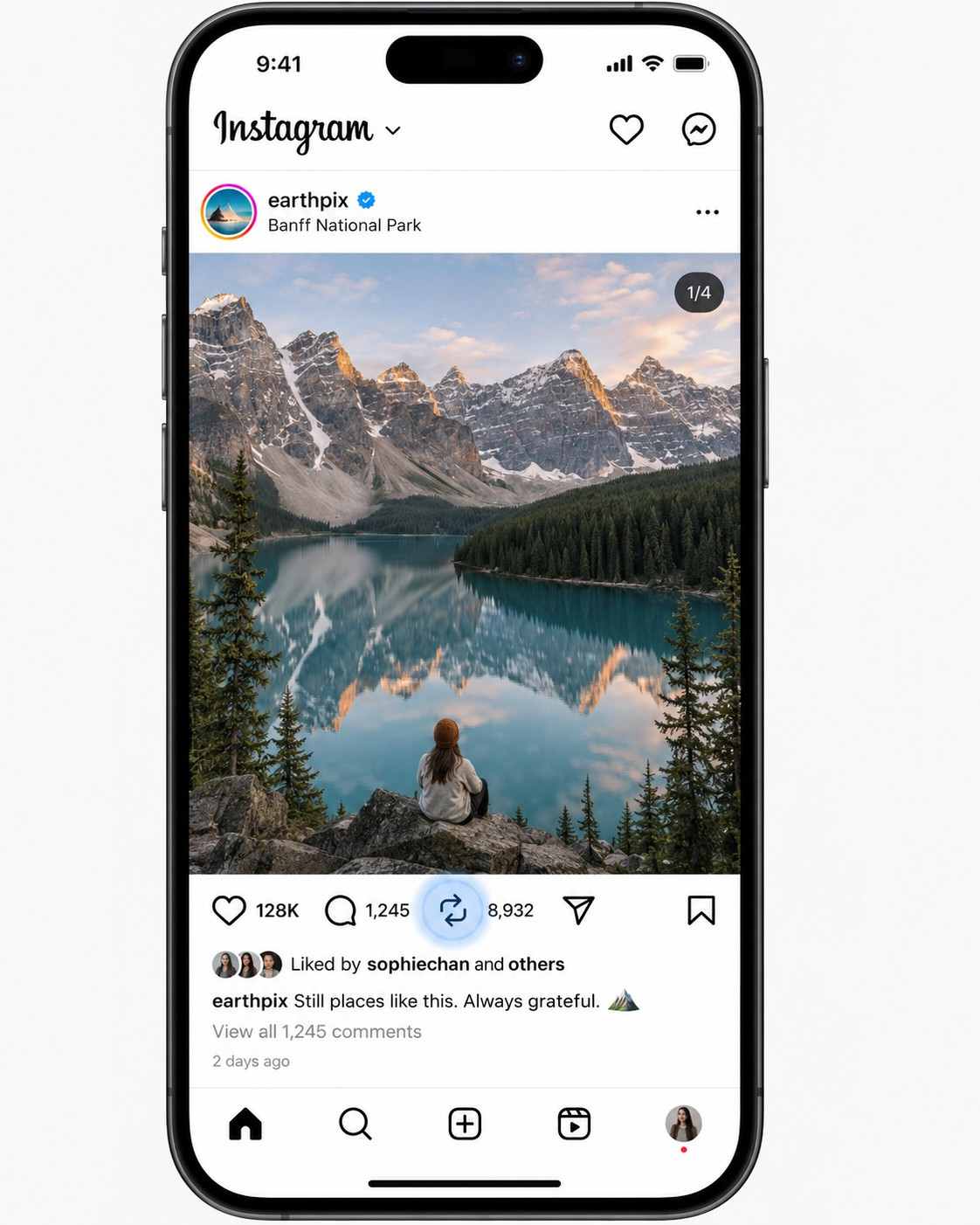
Find the specific post you want to repost, then tap the repost icon, shown as two circular arrows, sitting below the post itself. Adding an optional comment before tapping Repost shares the content into your feed and into a dedicated Reposts tab on your profile specifically.
For carousels
Find the carousel you want to repost, then tap the same repost icon below the post. Adding an optional comment before tapping Repost shares the entire carousel as a complete set rather than just a single slide from within it.
The key detail worth remembering across all three formats is that the repost button only appears on public posts and Reels. Private accounts simply do not offer a repost option to anyone outside their approved followers.
Can You Repost a Story If You Were Not Tagged?
The short answer is genuinely no, not directly. Here is what your actual options look like in that situation.
You cannot repost a Story you were not tagged in through Instagram’s standard flow. The platform requires either a direct tag from the original poster or that the original poster has ‘Allow resharing to Stories’ enabled in their account settings.
The workarounds worth considering include asking the creator to tag you directly, taking a screenshot of the Story and sharing it with clear credit attached, screen recording the Story and posting it as your own with credit included, or sharing the linked post instead of the Story itself if one exists.
The underlying rule to internalise is simple. Always ask permission before reposting content you were not tagged in. Doing so is both the respectful choice and generally the legally safer one, since reposting without any permission at all can occasionally cross into genuine copyright concerns depending on the content involved.
How Instagram’s Repost Feature Works in 2026
Instagram’s native repost feature originally launched back in 2022 and has continued evolving since then. Here is how it functions specifically in 2026.
The repost icon itself appears as two circular arrows sitting below public posts and Reels, and tapping it initiates the repost process directly.
The Reposts tab is a dedicated section now built into every profile, showing all the content a given account has reposted separately from their own original posts.
The comment feature lets you add an optional note when reposting, giving you a chance to add your perspective or context to whatever you are sharing rather than passing it along silently.
Feed visibility means reposted content genuinely appears in your followers’ feeds, functioning much like an original post of your own rather than staying hidden in a separate section only you can see.
Algorithm impact is worth noting too. Reposted content counts as a form of engagement, signalling to Instagram that you are an active, engaged user, which can modestly support your broader visibility on the platform over time.
The Ultimate Guide to the Instagram Repost Feature in 2026
Instagram Repost vs Share to Story: What Is the Difference?
People often confuse reposting and sharing to Story, so here is the clear distinction between the two.
What repost does
Reposting shares content directly to your feed, where it appears in your followers’ feeds much like an original post. It shows up in your dedicated Reposts tab, stays permanently on your profile, and works specifically for posts and Reels rather than Stories.
What share to Story does
Sharing to Story shares content to your Story specifically, where it stays visible for only 24 hours before disappearing. It appears near the top of your followers’ feed while active, works across posts, Reels, and Stories alike, and functions as genuinely temporary content rather than a permanent addition to your profile.
The relationship between the two is simple. Reposting is permanent. Sharing to Story is temporary. Use a repost for content you genuinely want sitting on your profile long term, and use a Story share for something more fleeting that does not need to stick around.
How to Repost Instagram Content Without Losing Quality
Quality genuinely matters when reposting, and a few habits make a real difference in how good the shared content actually looks once it goes live.
For Reels
The native repost feature preserves original quality without any noticeable loss. Avoid screen recording a Reel instead, since that approach genuinely reduces quality compared to using the repost button directly.
For posts
Screenshots tend to reduce image quality noticeably, so avoiding them in favor of the native repost button produces a cleaner result overall. If downloading is genuinely necessary for some reason, using a third party tool that specifically preserves resolution helps limit the quality loss somewhat.
For carousels
The native repost shares an entire carousel at its original quality without degradation. Screenshotting individual slides one at a time tends to introduce unnecessary quality loss and should generally be avoided when the native option is available instead.
The key habit worth building is simply defaulting to the native repost feature whenever it is available. It reliably maintains original quality, while screen recording and screenshotting both introduce quality loss that is easy to avoid entirely.
does editing a post on instagram affect reach? Editing a post after it has already been published can temporarily affect its reach. Instagram may re index the post following an edit, which can cause a brief dip in visibility for a short period afterward. Avoiding edits immediately after publishing and instead waiting at least 24 hours tends to minimise this effect.
https://youtu.be/DoaMYK9hl64?si=hv3-OTFaE7ifNKED
Why You Cannot Repost Some Instagram Stories or Posts
Sometimes the repost option simply is not available at all, and there are a handful of specific reasons behind that.
Private accounts prevent reposting entirely, since their content is only ever visible to approved followers in the first place, leaving no path for a public repost regardless of settings.
Disabled resharing happens when a creator has specifically turned off Allow resharing to Stories in their own account settings, which blocks anyone from resharing their Stories regardless of whether they were tagged elsewhere.
Deleted content cannot be reposted for the obvious reason that it no longer exists on the platform once the original post or Story has been removed.
Geographic restrictions occasionally apply too, since Instagram has rolled out the repost feature gradually rather than everywhere simultaneously, meaning some regions may not have full access yet.
Account restrictions can also disable reposting specifically. If an account is currently restricted or found to be in violation of Instagram’s terms, the repost feature may be disabled for that account until the issue is resolved.
Instagram Reposting Rules, Permissions and Credit Best Practices
Reposting comes with a handful of genuine rules and norms worth following consistently.
Always crediting the creator matters even when Instagram automatically links back to the original post as part of the repost feature itself. Adding explicit credit within your own caption is still considered better practice, since it makes the attribution clearly visible rather than relying entirely on the automatic link.
Asking permission when possible remains important, particularly if you were not tagged in the original content. A quick DM requesting permission before reposting can help maintain good relationships within a niche or community.
Avoiding a repost with zero added context is worth considering too. Adding your own comment or brief perspective when reposting shows you are engaging thoughtfully with the content rather than simply copying it wholesale.
Respecting a creator’s wishes matters above all else. If someone explicitly asks that their content not be reposted, honoring that request is simply the right call regardless of how tempting the content might be to share.
Following Instagram’s own terms throughout this process means never reposting content that violates the platform’s community guidelines, regardless of how it was originally sourced or who created it.
Best Ways for Brands and Creators to Use Reposts for Engagement
Reposting genuinely functions as a content strategy in its own right when used with intention. Here is how to use it effectively.
User-generated content, meaning customer photos and testimonials shared by the people using your product or service, builds real social proof and a stronger sense of community around a brand.
Industry content, meaning relevant posts from other creators in your space, positions your account as a genuine curator of valuable information rather than only a source of your own promotional material.
Partner content, meaning posts from collaborators, partners, and sponsors, helps strengthen those relationships visibly rather than only behind the scenes.
Trending content, meaning currently popular Reels or posts relevant to your niche, signals that your account stays current and genuinely engaged with what is happening in your space right now.
Community content, meaning posts from your own audience and followers, builds real loyalty over time and tends to encourage even more user generated content going forward as people see their own posts get shared.
Social by InstantDM can help plan reposted content alongside your own original posts, with the AI suggesting both when to repost something and how to credit the original creator in a way that supports maximum engagement rather than feeling like an afterthought.
The Bottom Line
Reposting on Instagram remains one of the fastest ways to create content without technically creating something entirely new. You share someone else’s great work, your audience benefits from seeing it, the original creator gets additional exposure, and the whole exchange tends to work out well for everyone involved.
In 2026, Instagram’s native repost feature makes the whole process easier than it has ever been. Tap the repost icon, add an optional comment, and share. For Stories specifically, tap Add to your story whenever you have actually been tagged in one.
Social by InstantDM can help plan reposted content alongside your own original posts, with the AI suggesting both when reposting makes sense and how to credit creators properly along the way.
Start reposting today. Find genuinely great content within your niche. Repost it with proper credit attached. Add your own perspective on top of it. Watch your engagement grow from there. That is genuinely how reposting works in practice.
Sources Used for This Guide:
References:
https://sproutsocial.com/insights/how-to-repost-on-instagram/
https://www.sendible.com/insights/how-to-repost-a-story-on-instagram
https://hibu.com/blog/marketing-tips/how-to-use-instagram-s-new-repost-feature
Frequently asked questions
How do I repost a Story on Instagram?
If you were tagged, tap Add to your story from the DM notification you received, customize it if you want, and tap Your Story to share it. If you were not tagged, ask the creator to tag you directly or share the content as a screenshot with clear credit attached instead.
How do I repost a Reel on Instagram?
Tap the share icon, shaped like a paper airplane, below the Reel. Select Repost from the menu that appears, add an optional comment, and tap Repost. The content will then appear in both your feed and your followers' feeds.
Can I repost a Story if I was not tagged?
Not directly through Instagram's standard flow. You need to either be tagged or have the original creator enable the Allow resharing to Stories’ option in their settings. Asking for permission or sharing the content as a screenshot with credit remain your main alternative.
Does reposting affect my Instagram reach?
Reposting counts as a form of engagement and can modestly support your reach in a positive way, since it signals to Instagram that you are an active, engaged user. That said, avoid reposting excessively, since quality genuinely matters more than sheer quantity here.
How do I credit someone when reposting on Instagram?
Instagram automatically links back to the original post whenever you repost. For extra clarity and courtesy, adding the creator's username directly in your caption or tagging them within the repost itself is genuinely worth the small extra effort.