How to Share an Instagram Post to Your Story in 2026: Step by Step Guide
Share Instagram posts to your Story step by step, feed posts, Reels, carousels, and more. Complete 2026 guide.

TL;DR
Sharing an Instagram post to your Story only takes a few taps. Find the post, tap the paper airplane icon underneath it, select Add to your story, customize however you like, and post. The original shows up as a sticker your followers can tap to see the source.
It is not always that simple though. Private accounts cannot be shared at all. Some creators turn resharing off on purpose. Carousels behave differently than a single photo, since only the first slide comes through. This guide walks through every version of that process, plus what to do when the share button is not there at all.
Introduction
Resharing content to your Story is one of those features that feels obvious right up until it does not work, and then you are stuck wondering whether you did something wrong or the creator locked it down on purpose. Both are common, and the difference matters because one has a workaround and the other does not.
Instagram has quietly changed a few things about how sharing works over the past couple of years, particularly around carousels, Reels, and what happens when an account is private. None of it is complicated once you know the rules, but it is easy to get tripped up if you learned the basics years ago and have not revisited them since. This guide covers the full process for every content type, why the share option sometimes disappears, how to customise what you post, and how to do it all without coming across as someone who just reposts everything they see without adding anything of their own.
How to Share an Instagram Post to Your Story in 2026
Instagram keeps the core sharing flow simple, and it has stayed mostly consistent even as other parts of the app have changed around it.
Step 1: Find the post you want to share. This can be your own content or someone else’s, and the process is identical either way.
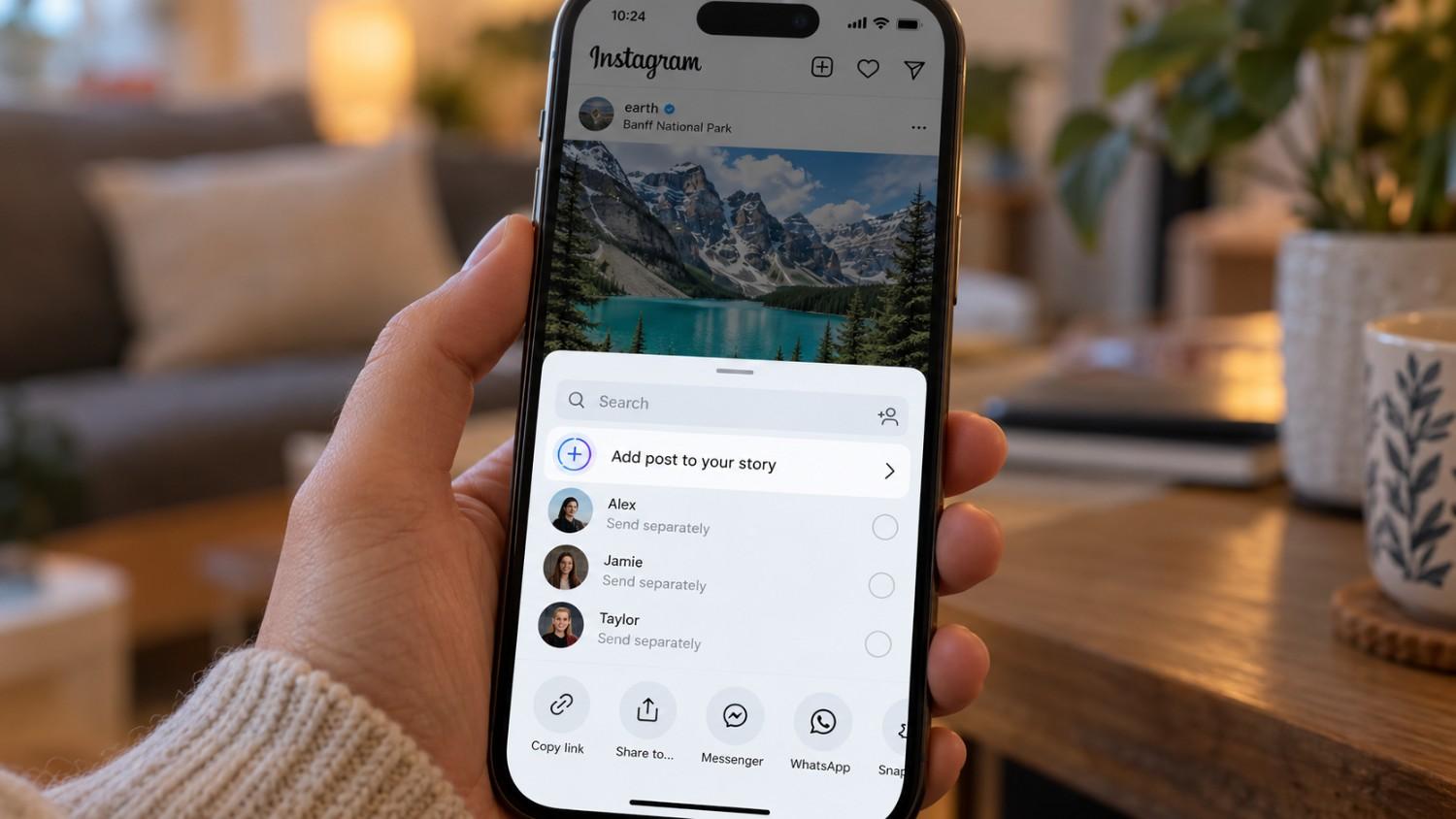
Step 2: Tap the paper airplane icon below the post. This is the same icon you would use to send the post as a direct message, positioned next to the comment and like buttons.
Step 3: Select Add to your story from the menu that pops up. The post loads directly into the Story editor.
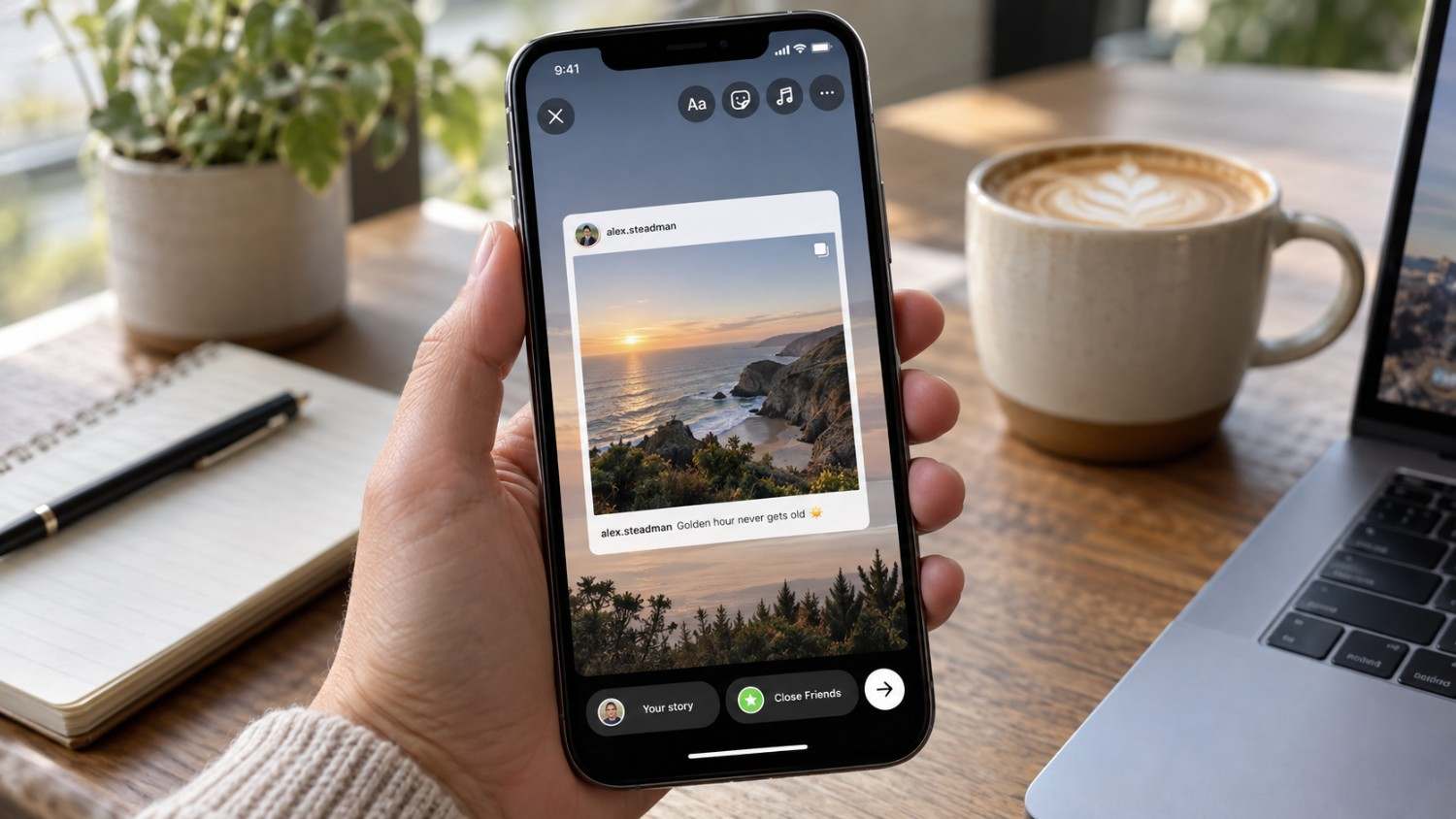
Step 4: Customize your Story before posting. This is where stickers, text, GIFs, and drawings come in, and it is worth spending a moment here rather than posting the raw sticker with nothing added.
Step 5: Tap Your Story to publish it. The original post appears as a tappable sticker that takes viewers back to the source if they tap it.
The one rule that governs all of this: the post has to be public. If the account is private, the share option simply is not there, no matter what type of content it is.
https://youtu.be/edpwz3srgBo?si=gFQe4RRSMRJ99DBa
How to Share Someone Else’s Instagram Post to Your Story
This is the version most people actually use day to day, since resharing other creators’ content is a normal part of how Stories get filled out.
Step 1: Find the post, either by browsing your feed naturally or searching directly for it if someone sent it to you.
Step 2: Tap the paper airplane icon underneath the post, which opens the share menu.
Step 3: Select Add to your story, and the post drops into the Story editor exactly as it would with your own content.
Step 4: Add your own commentary. This is the step people skip most often, and it is the one that actually makes the repost worth posting. A single line of context turns a plain reshare into something your followers get value from.
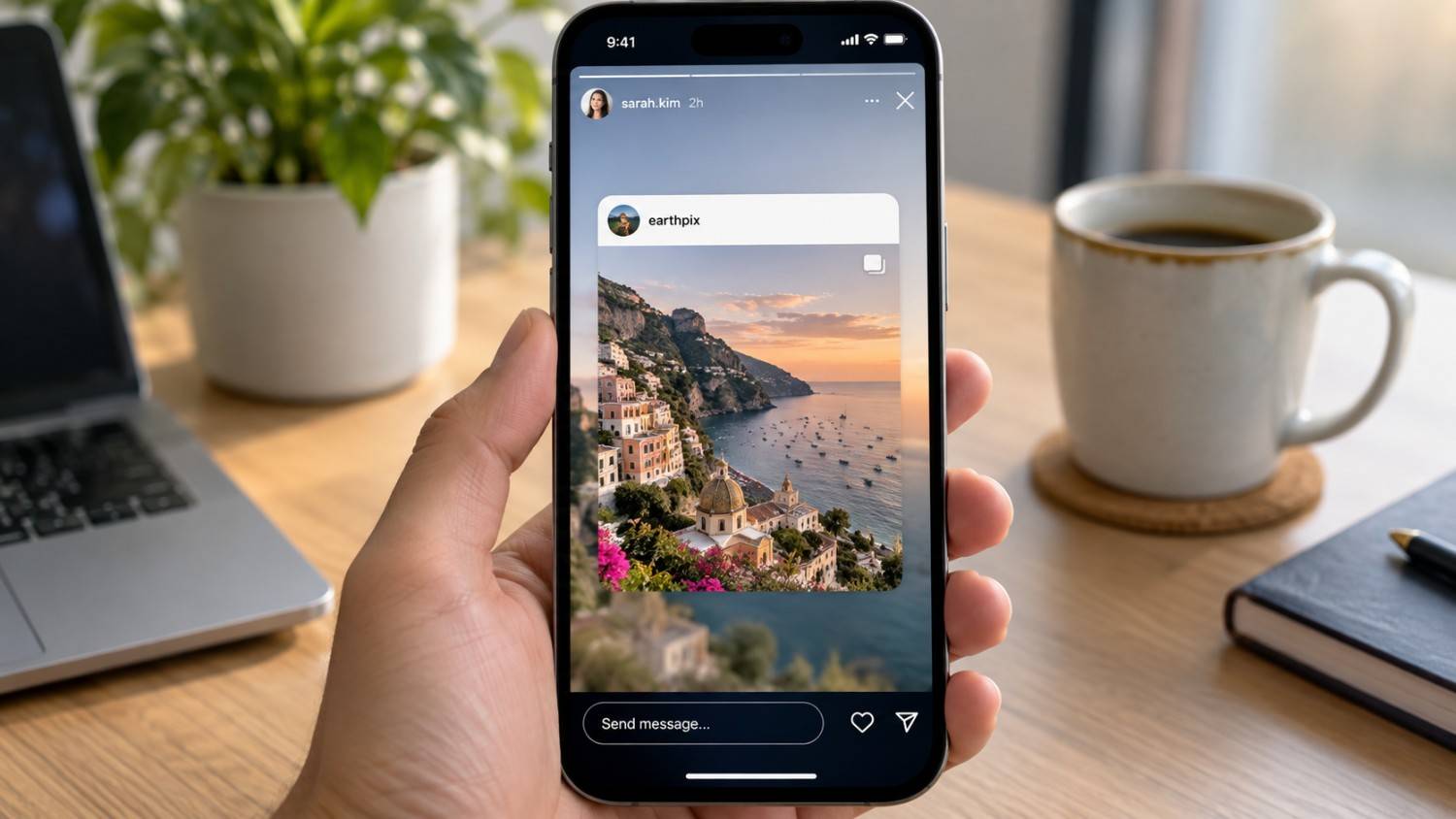
Step 5: Share it. The post shows up as a sticker your followers can tap, which sends them to the original post and, importantly, still credits the original creator automatically through that link.
The one limitation worth remembering here is that this only works for public accounts. Private accounts remove the share button entirely, which is covered in more detail below.
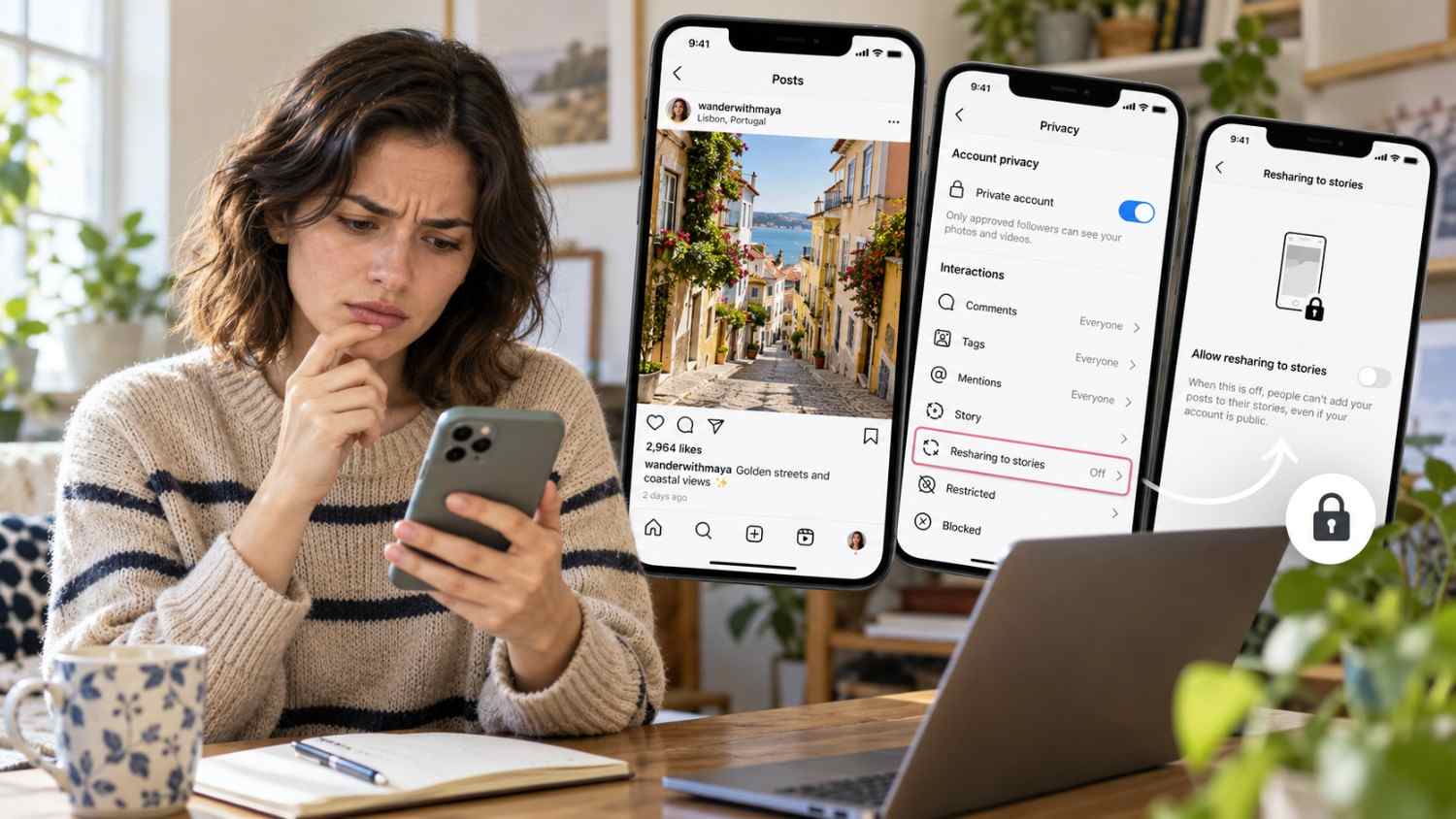
Why You Can’t Add a Post to Your Instagram Story
There are five distinct reasons the share option might be missing, and they are worth knowing individually since the fix is different for each one.
Private Accounts
If the account posting is private, sharing is simply not available. Instagram treats this as a hard rule rather than a setting either side can override casually.
Disabled Resharing
Some creators specifically turn off Allow resharing to Stories in their settings, usually because they want more control over how and where their content circulates. When this is off, nobody can share their posts, regardless of the relationship between the two accounts.
Deleted Content
If the original post has since been taken down, there is nothing left to share. This one is easy to miss because the post might still show up in an old screenshot or a saved link, giving the impression it should still work.
Geographic Restrictions
Instagram has rolled the sharing feature out unevenly across regions in the past, and while this is less common than it used to be, it still occasionally explains a missing share button that has no other obvious cause.
Account Restrictions
If your own account is restricted, flagged, or in violation of Instagram’s terms in some way, sharing features can be disabled on your end specifically, even if the original post is perfectly shareable for everyone else.
The general fix across most of these is either asking the creator directly to enable resharing, or falling back to a screenshot with clear credit given in the text.
How to Share a Feed Post to Stories Step by Step
This is the full, detailed version of the process for anyone who wants every step spelled out rather than the shortened summary above.
Step 1: Open Instagram and navigate to the specific post you want to share.
Step 2: Tap the paper airplane icon, located directly below the post next to the comment icon.
Step 3: Select Add to your story from the menu that appears.
Step 4: The post loads into the Story editor as a sticker sitting on your Story canvas.
Step 5: Resize and reposition it. Pinch to make it larger or smaller, and drag it to wherever you want it positioned on the screen.
Step 6: Add elements. Tap the sticker icon to layer in polls, questions, GIFs, or additional text on top of the shared post.
Step 7: Tap Your Story to share it publicly, or tap Close Friends instead if you would rather post it to a smaller, selected group.
The one tip worth repeating: add your own commentary rather than posting the sticker on its own. Context, an opinion, or even a single reaction line is what separates a useful repost from noise in someone’s Story feed.

Can you share a Private Account’s Post to Your Story?
No, and this is one of the more absolute rules in how Instagram sharing works.
Instagram only allows sharing from public accounts. Private accounts restrict who can view their content in the first place, and extending that content into someone else’s Story would undermine the entire point of the privacy setting.
There are two real workarounds. You can ask the creator to make their account public temporarily, which is a big ask and rarely practical, or you can ask them to share the post to your Story directly from their own account instead.
There is one exception worth knowing. If someone tags you in their own Story, you can reshare that specific Story regardless of whether their account is private, since tagging you is effectively an invitation to reshare that particular piece of content.
How to Repost an Instagram Post When the Share Option Is Missing
When the direct share option is not available, there are still a few reasonable paths forward, though none of them are quite as clean as the built in feature.
Ask the Creator to Enable Resharing
The most straightforward option is simply asking. Creators can toggle Allow resharing to Stories in their own settings, and many are happy to turn it on if you ask directly rather than assuming it is permanently off.
Screenshot With Credit
Taking a screenshot and sharing it to your Story works as a fallback, as long as you tag the original creator clearly in the text. This is the most common workaround and generally accepted as long as credit is visible.
Screen Record for Video
For video content specifically, screen recording gives you a version you can share when the direct option is not there, again with credit included.
Share the Link Instead
Copying the post’s link and using the link sticker in your Story gives followers a direct path to the original content without needing to repost the visual itself.
The one rule that applies across all four of these: always ask permission first when you are working around a missing share option rather than through it. It is the same content either way, and the courtesy matters.
How to Customize a Shared Post in Instagram Stories
A reshared post does not have to sit on your Story exactly as it loaded in. Customization is where a repost starts to feel like your own content rather than a copy paste.
Resizing is done with a simple pinch gesture on the sticker, letting you make it larger for emphasis or smaller to leave room for other elements around it.
Repositioning works the same way most stickers do, drag it anywhere on the canvas until it sits where you want.
Adding a background color behind the sticker, using the draw tool, helps the post stand out rather than blending into whatever is behind it, especially useful if the original post has a busy or cluttered image.
Adding text lets you include your own commentary directly on the Story rather than relying on the caption alone, which matters since not everyone reads captions closely.
Adding stickers, polls, questions, countdowns, or GIFs turns a static repost into something interactive that your audience can actually respond to.
Adding music gives the Story a soundtrack, which can shift the tone of a repost significantly depending on what you choose.
The overall point of all this customization: a shared post with nothing added is just a copy of someone else’s content. A shared post with your own perspective layered on top is genuinely useful to the people following you.
How to Add Stickers, Text, GIFs and Links to a Reposted Story
Building on the customisation basics above, here is a closer look at exactly what to add and why each one works.
Text commentary is the simplest and most effective addition. A line like this is exactly what I needed to hear or great tip from this creator gives your followers context they would not get from the raw repost alone.
Polls give your audience something to interact with directly, asking a simple question tied to the content, such as whether they agree with the point being made.
Questions invite open ended responses rather than a binary choice, which works well when the shared content is more nuanced or opinion based.
GIFs add tone and personality, and searching the built in GIF picker for something that matches the mood of the post is an easy way to make a repost feel less flat.
Link stickers matter specifically when the original post references an outside resource, giving your followers a direct path to it rather than expecting them to search for it themselves.
Mentions, tagging the original creator directly, notify them that you shared their work and often lead to them reposting your Story in return, which is genuinely one of the better ways to build a relationship with another creator organically.

How to Share Reels to Your Instagram Story
Reels follow largely the same process as feed posts, with one meaningful difference in how they display once shared.
Step 1: Find the Reel you want to share, either from your own feed or from browsing elsewhere on the app.
Step 2: Tap the paper airplane icon positioned below the Reel.
Step 3: Select Add to your story, which loads the Reel into the Story editor.
Step 4: Customize it the same way you would a feed post, text, stickers, or GIFs layered on top.
Step 5: Share it to publish.
The difference worth remembering is that Reels play back as video directly within your Story, rather than sitting as a static image the way a feed post does. That makes them naturally more engaging when someone is scrolling through Stories, since motion catches attention in a way a still sticker does not.
https://youtu.be/klOCEhziAps?si=x70eOZTcnhXnYzrO
How to Share Carousel Posts to Stories
Carousels work differently enough from single image posts that they deserve their own explanation.
Step 1: Find the carousel post you want to share.
Step 2: Tap the paper airplane icon underneath it.
Step 3: Select Add to your story. Instagram automatically pulls in the first slide of the carousel only, not the full set.
Step 4: Customize the Story as usual with text or stickers.
Step 5: Share it. Only that first slide shows up visually in your Story, though tapping the sticker takes viewers through to the full carousel with every slide included.
The limitation to keep in mind is that you cannot choose which slide gets pulled in. It is always the first one, so if the most compelling image in the carousel is the third or fourth slide, that context gets lost unless you mention it directly in your added text.
How to Tag the Original Creator When Reposting
Giving credit is not just good etiquette, it is also how you build actual relationships with other creators over time.
Mention Sticker
Tap the sticker icon in the Story editor and select Mention, then type the creator’s username. This is the most visible way to tag someone, since it shows up as a clear, tappable element on the Story itself.
Text Mention
Typing the at symbol followed by a username directly in your text works as a simpler, less visually prominent form of the same thing.
Tag Sticker
A dedicated tag sticker gives you another option specifically for crediting the creator, functioning similarly to the mention sticker but with slightly different placement and styling.
The rule that matters most here is consistency. Always credit the original creator, every time, regardless of which method you use. It costs nothing and it is the difference between a respectful repost and one that quietly takes credit for someone else’s work.
Best Practices for Reposting Instagram Content Without Looking Spammy
Reposting done well adds something to your Story. Done carelessly, it just clutters your followers’ feed with content they may have already seen elsewhere.
Add commentary every time. A repost with zero added context reads as lazy, even if the underlying content is genuinely good.
Credit the creator without exception. This topic has come up repeatedly in this guide because it matters that much.
Share selectively rather than reposting everything that crosses your feed. Choose content that actually fits your brand or your audience’s interests, rather than reacting to everything in the moment.
Add real value, whether that is a tip, an insight, or a question that gets your audience thinking rather than just scrolling past.
Stay consistent without overdoing it. Somewhere around one or two reshared posts a week tends to be the sweet spot, enough to keep your Story active without it turning into a feed of other people’s content.
Planning Your Story Shares Ahead of Time
Most of the process covered above happens in the moment: you see a post, you decide to share it, and you post it right then. That works fine occasionally, but it gets harder to keep up once you are trying to maintain a consistent presence across more than one platform.
This is really a scheduling problem rather than a sharing problem, and it is worth being specific about what actually solves it. Social by InstantDM is not a resharing tool, and it does not suggest what to repost. It is a scheduling and publishing platform, so once you have decided what you want to share and how you want to credit the source, you can queue that content, along with captions, across Instagram, Facebook, X, LinkedIn, TikTok, Pinterest, Threads, and YouTube from one calendar instead of posting everything manually in the moment. For anyone who reposts regularly enough that it has become part of a real content routine rather than an occasional habit, this is the feature that actually saves time. You can look at how it works at https://socialbyidm.com.
Sharing Posts to Stories Comparison
| Content Type | How to Share | What Appears | Limitations |
|---|---|---|---|
| Feed post | Paper airplane, then Add to story | Static sticker | Public accounts only |
| Reel | Paper airplane, then Add to story | Video plays | Public accounts only |
| Carousel | Paper airplane, then Add to story | First slide only | Public accounts only |
| Story mention | Tap Add to your story | Full Story | Must be tagged |
| Private post | Not possible | N/A | Cannot share |
The Bottom Line
Sharing posts to your Story is one of the easiest ways to keep your presence active without creating something from scratch every time. The process itself is simple, tap the share icon, select Add to your story, and customize before posting.
In 2026, Instagram supports this for feed posts, Reels, and carousels, each with slightly different behavior once shared. The part that actually separates a good repost from a forgettable one is what you add to it, a line of commentary, a poll, or proper credit to the person who made it in the first place.
Find content worth sharing, add your own perspective, credit the creator, and share it. That is really the entire process, and once it becomes routine, it takes seconds rather than something you have to think through each time.
Sources for This Guide:
References:
https://www.socialchamp.com/blog/how-to-share-instagram-post-to-story/
https://buffer.com/resources/add-instagram-post-to-your-story/
https://www.businessinsider.com/reference/how-to-share-a-post-to-your-instagram-story
Frequently asked questions
How do I share someone's post to my Instagram Story?
Tap the paper airplane icon below the post, select Add to your story, customize it with stickers and text, then share. The original post appears as a tappable sticker on your Story.
Why can't I share a post to my Story?
The most likely reasons are that the account is private, the creator has turned off resharing, or the content has been deleted. If none of those apply, ask the creator directly, or fall back to a screenshot with clear credit.
Can I share a Reel to my Instagram Story?
Yes. Tap the paper airplane icon below the Reel, select Add to your story, and customize as needed. The Reel plays as a video directly in your Story rather than showing as a static image.
How do I credit the original creator when sharing?
Use the mention sticker to tag them directly, or type their username into your added text. Either way, crediting the creator should happen every time you repost their content.
Can I share a carousel post to my Story?
Yes, though only the first slide comes through visually. Tapping the sticker takes your followers to the full carousel with every slide included.