How to Schedule YouTube Shorts (Native + Third Party) in 2026
Schedule YouTube Shorts natively or with third-party tools. Step-by-step guide with bulk scheduling and best times.
TL;DR
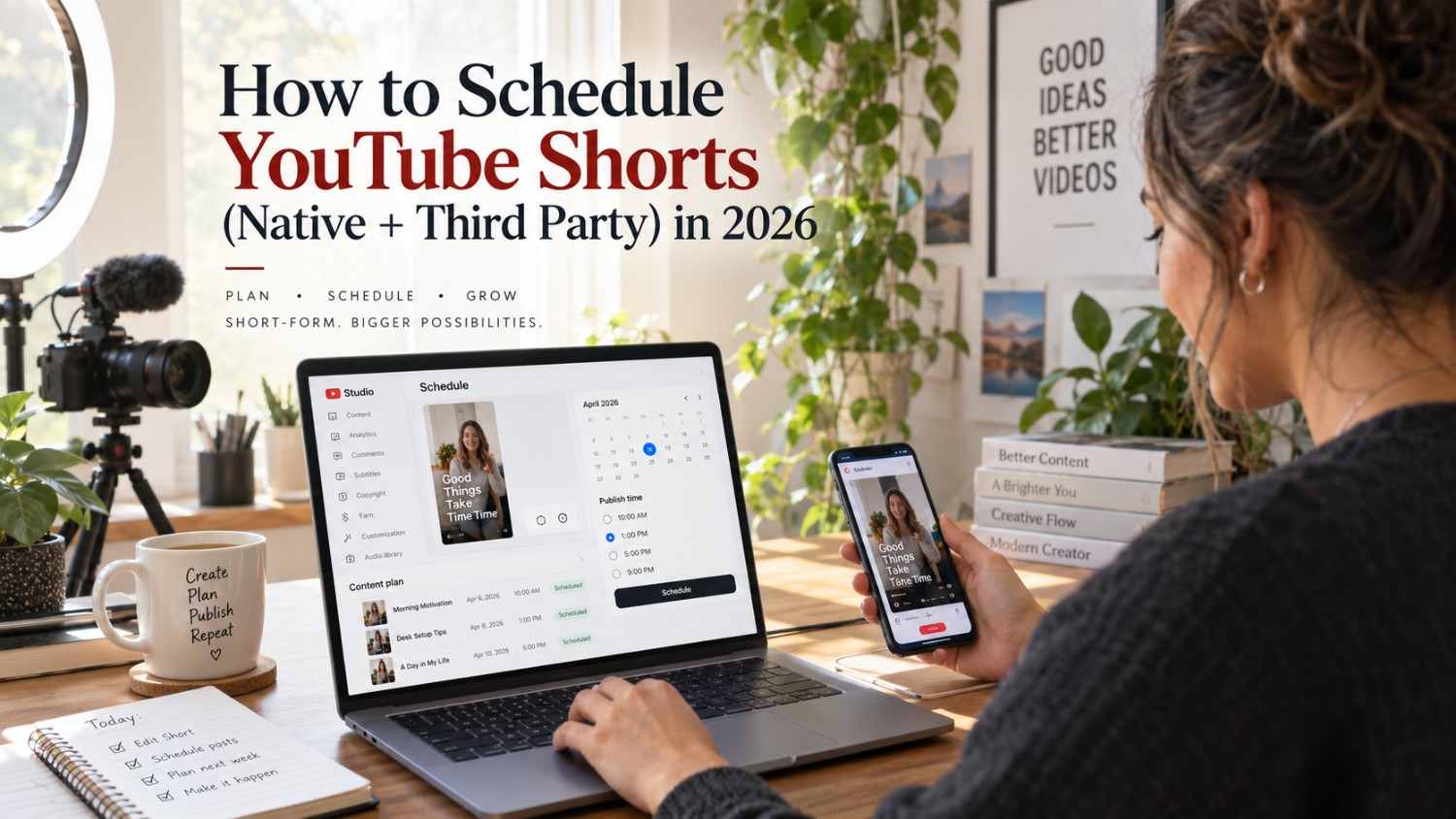
Short answer, yes, you can schedule YouTube Shorts, and no, it will not hurt your views. YouTube Studio on desktop handles native scheduling for free, and honestly it works fine if you are only lining up a video every now and then. Where it gets old is once you are managing several Shorts a week and doing everything one video at a time starts feeling like a part-time job. That is when third-party tools start to make sense, since most of them let you batch upload, set publish times in bulk, and in some cases even generate captions and hashtags for you. In 2026, the algorithm does not care whether a Short was scheduled ahead of time or published the moment you hit upload; it treats both the exact same way, so there is no hidden penalty for planning ahead. This guide walks through the native method step by step, compares the third-party options worth knowing about, including Social by InstantDM, Buffer, Hootsuite, Later, and SocialPilot, and gets into the timing data that actually moves the needle on views.
Introduction
There is a very specific kind of burnout that comes from opening YouTube Studio every single day just to hit publish on a thirty-second video. It is not the filming or editing that wears creators down, honestly. It is the repetitive, manual act of logging in daily to push content live, especially once you are trying to post three, four, or five Shorts a week on top of everything else you already have going on.
Scheduling fixes this, and it’s one of those features that more creators should be using, especially given how simple it is once you know where to look. You can sit down once and plan out a full week, or even a month, of Shorts, set them to go live when your audience is actually watching, then walk away from the platform without losing any momentum in between. The catch is that YouTube offers a few different ways to do this, both native and third-party, and each has its own tradeoffs around cost, batch size, and metadata control.
This guide covers exactly how to schedule a Short from YouTube Studio on desktop and mobile, walks through the strongest third-party tools for real bulk scheduling, and gets into the timing research that tells you when to actually hit that schedule button.
Can You Schedule YouTube Shorts? Quick Answer
Yes. YouTube Shorts can be scheduled natively through YouTube Studio on desktop, and you can also schedule them through third-party tools that connect to the YouTube Data API, which opens up bulk scheduling and cross-platform publishing that the native tool does not offer.
There is no follower requirement here either, which is worth pointing out if you are coming over from TikTok, where scheduling is locked behind a one thousand follower threshold. YouTube lets any creator schedule Shorts from day one regardless of subscriber count, which is genuinely useful if you are a brand new channel trying to build a consistent posting habit from the start.
The part that matters most, especially if you are worried about losing reach, is the timing. A scheduled Short performs exactly the same as one you publish manually. The algorithm cannot tell the difference, and it does not treat scheduled content any differently when it comes to initial distribution.
https://www.youtube.com/watch?v=Y2sDW6DSrYM
YouTube Shorts Scheduling at a Glance
Here is a quick side-by-side of your options before getting into the details of each one.
| Method | Platform | Batch Scheduling | Cost |
|---|---|---|---|
| YouTube Studio (Desktop) | Desktop browser | No (one at a time) | Free |
| YouTube Studio (Mobile) | iOS/Android app | No (one at a time) | Free |
| Buffer | Web/mobile | Yes | $6/channel/month |
| Hootsuite | Web/mobile | Yes | $99/month |
| Later | Web/mobile | Yes | $25/month |
| SocialPilot | Web/mobile | Yes | $30/month |
| Social by InstantDM | Web/mobile | Yes | Free tier available |
Requirements Before Scheduling a Short
Before you schedule anything, please ensure you have these pieces sorted first.
Start with the video file itself. Your Short needs to run under sixty seconds and be filmed vertically in a 9:16 aspect ratio, with a max file size of 256MB. Pair it with a descriptive title, kept under one hundred characters, that actually includes the words someone might type in if they were searching for content like yours. A vague title just wastes the searchability that YouTube already provides. Shorts by default.
Your description matters more than most creators give it credit for. Include a few relevant keywords, a short explanation of what the video is actually about, and any links you want people to find. For hashtags, keep it to three to five that genuinely fit, always including the Shorts tag along with a couple that are specific to your niche rather than whatever generic tags everyone else is already using.
Then there is the thumbnail. YouTube will pull a frame automatically, but you can upload your own instead, and it is worth doing. A clear, purposeful thumbnail can significantly improve your click-through rate, even on a format as fast-paced as Shorts.
In short, ensure your metadata is in order before scheduling anything. Titles, descriptions, and hashtags help YouTube understand your content and who to show it to, so rushing this part undercuts everything else you’re trying to do.
How to Schedule YouTube Shorts on Desktop
YouTube Studio on desktop is the most reliable way to do this, so I recommend starting there if you have never scheduled a Short before.
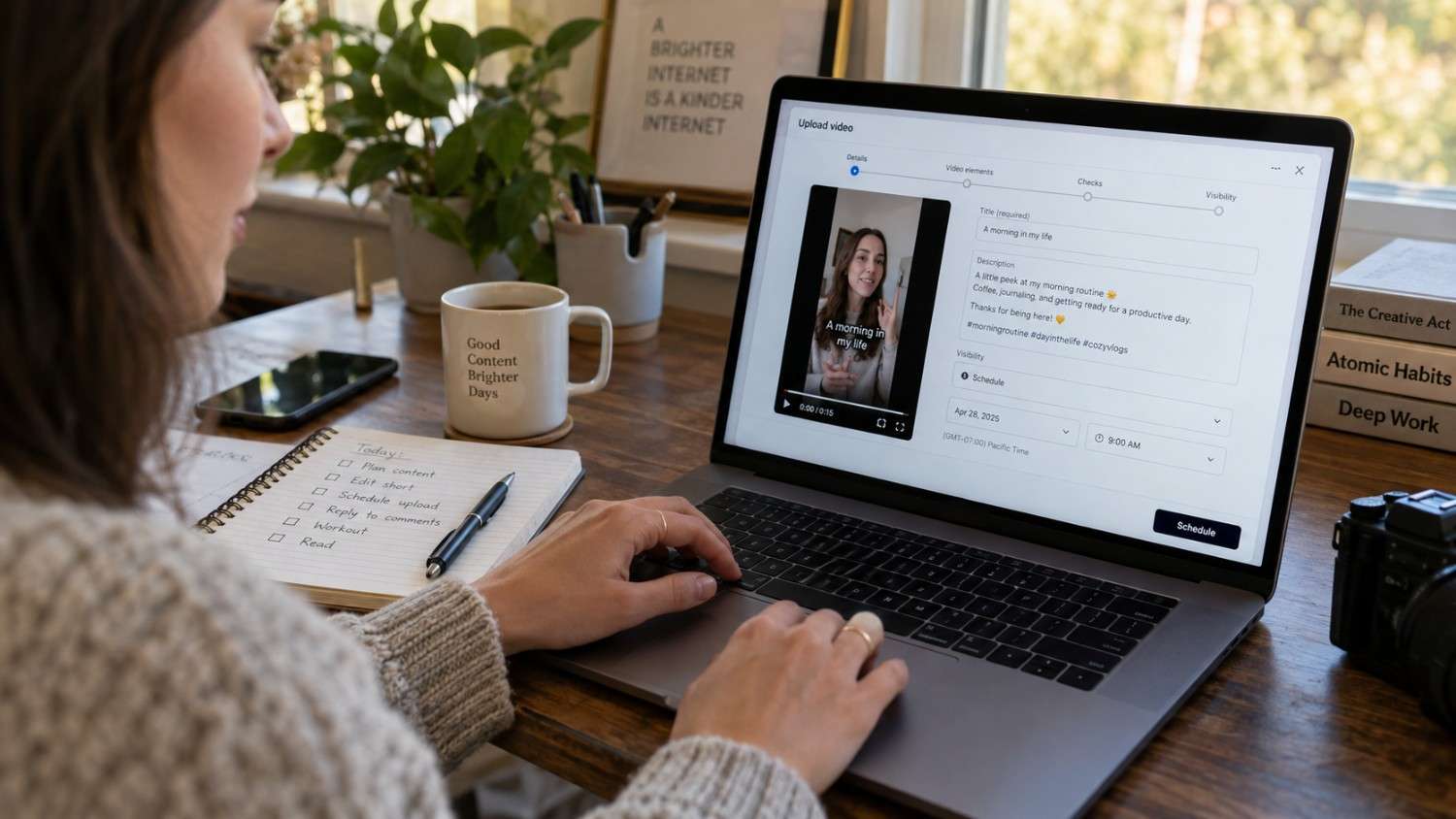
First, open YouTube Studio by going to studio.youtube.com in your browser and signing in. Click Create in the top right corner, then choose Upload videos from the dropdown that pops up. Select the Short from your computer, and YouTube will automatically pick up that it is a Short as long as it is under sixty seconds and shot vertically.
Once it is uploaded, add your title, description, and tags, making sure to work in the keywords people are actually likely to search for. Then head to Visibility in the left sidebar and pick Schedule instead of Save or publish. From there, choose your date and time. You get up to thirty days out to work with, which is plenty of room to plan a full content calendar in advance.
Click Schedule, and that is it. Your Short goes live automatically at the time you picked, and you will get a quick confirmation message once it is locked in.
One thing worth doing every time, preview the Short before you finalize anything. Make sure it plays correctly and the metadata looks the way you meant it to, since catching a typo in your title before publishing is a lot less annoying than catching it after.
How to Schedule YouTube Shorts on Mobile
The mobile app supports scheduling too, just with a bit less consistency than desktop.
Open the app and tap the plus button at the bottom centre of the screen, then select Create a Short. You can record something fresh or pull an existing video from your camera roll. Edit it however you need, adding music, text, filters, and timeline tweaks, while keeping the final cut under sixty seconds.
Tap Next and fill in your title, description, and hashtags the same way you would on desktop. From there, tap Advanced settings and look for the scheduling option, though heads up, this does not show up consistently across every version of the app. If it is there, set your date and time, then tap Upload Short, and it will go live automatically once that time hits.
As of early 2026, mobile scheduling for Shorts still works inconsistently depending on your app version and device. If you dig through advanced settings and there is simply no scheduling option, it is best not to waste time troubleshooting. Just switch to YouTube Studio on desktop, where the feature actually works reliably.
Best Tools for Scheduling YouTube Shorts
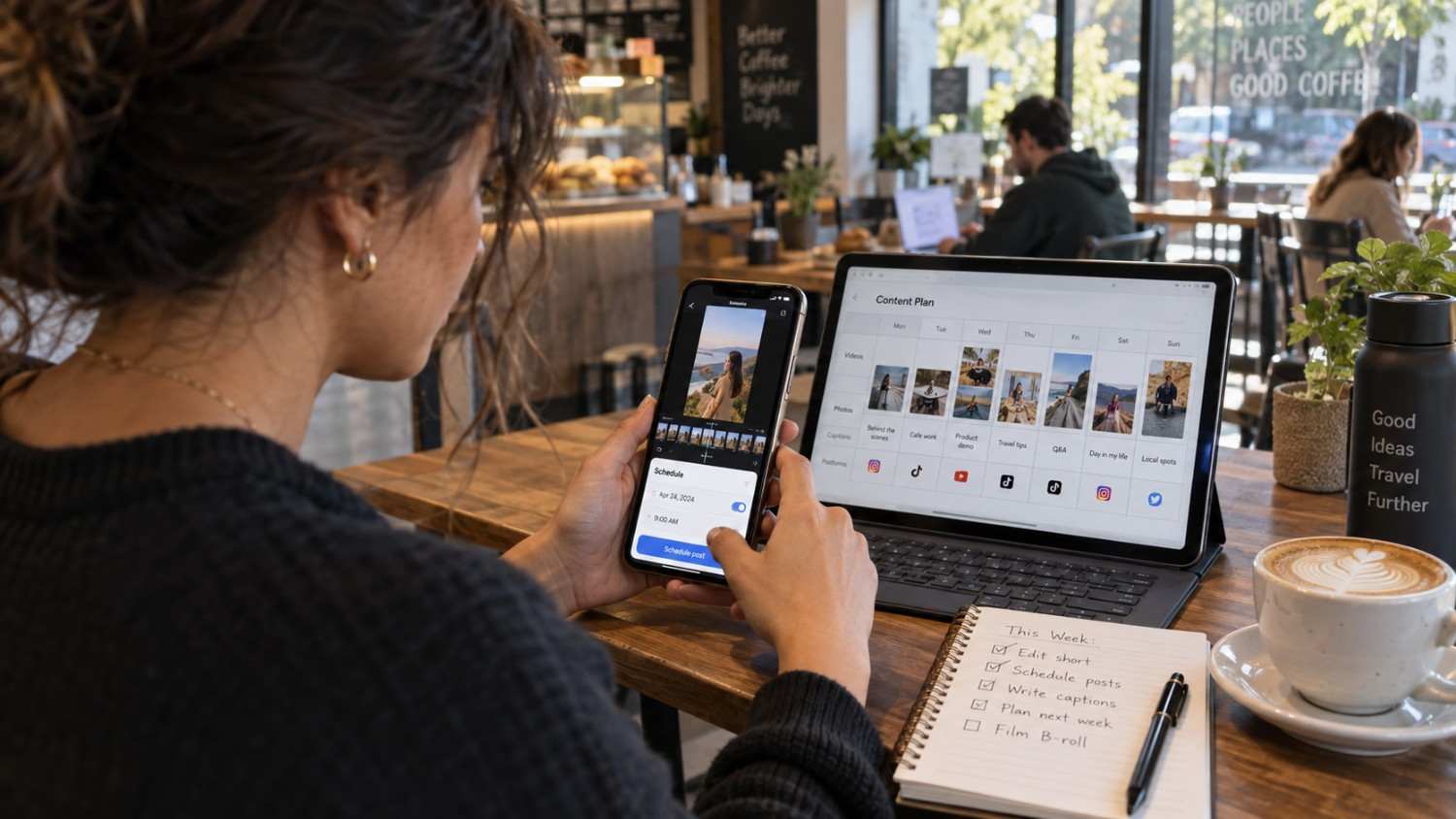
YouTube Studio covers the basics, but third party tools open up things it simply does not offer, mainly around batch scheduling and posting to multiple platforms at once. Here is how the main options stack up.
Buffer
Buffer tends to be the first tool creators try, mostly because it is so straightforward. Pricing kicks off at six dollars per channel per month, and there is a free plan if you want to poke around before committing to anything. It handles scheduling for YouTube Shorts alongside Instagram, TikTok, and a handful of other platforms, all through a clean interface built around a visual calendar.
It is a solid fit for solo creators who just want simple scheduling without a learning curve attached. My honest take is that Buffer does the basics well, but do not expect much beyond that. There is no true bulk upload here, and no AI-generated captions either, so if you need those, look elsewhere on this list.
Hootsuite
Hootsuite is a much bigger platform, built more for teams than individual creators. It starts at ninety-nine dollars a month, which does get you ten social accounts under one plan, along with multi-platform scheduling, team collaboration tools, analytics, and social listening, all of which cover YouTube Shorts.
If you are running a larger operation managing multiple brands or client accounts, this makes sense. If you are one person posting to your own channel, it is genuinely more than you need, both in terms of price and complexity.
Later
Later leans heavily into visual planning, with a clean, image forward interface that a lot of creators find satisfying to work with. It starts at twenty five dollars a month, with a limited free plan available too. You get a visual content calendar, drag and drop scheduling, and link in bio tools, and yes, it supports YouTube Shorts alongside its broader platform coverage.
Where it works best is for creators who want their scheduling tool to double as a visual planning tool. Just know going in that YouTube Shorts feels like an afterthought here compared to how much Later leans into Instagram specifically, so it might not be your best pick if YouTube is where most of your energy goes.
SocialPilot
SocialPilot is an affordable option built with growing teams in mind rather than solo creators or massive agencies. It starts at thirty dollars a month and supports up to ten accounts, with bulk scheduling, a content calendar, analytics, and team collaboration built in, all of it compatible with YouTube Shorts.
It is a good fit if you need real bulk scheduling but Hootsuite feels like overkill for your budget. The tradeoff is that it does not have much in the way of AI features, which a few competitors on this list have started building in.
Social by InstantDM
Social by InstantDM takes a slightly different approach, pairing scheduling with AI content planning rather than being purely a scheduling tool. There is a free tier to start with, and paid plans if you want the more advanced features down the line. It covers AI-generated captions and hashtags, multi-platform scheduling, and a content calendar, supporting YouTube Shorts alongside Instagram, TikTok, and more.
It tends to work best for creators who like having a bit of AI assistance built into the workflow instead of writing every caption and hashtag set from scratch. What stands out is that the caption suggestions are pulled from the actual content rather than some generic template, which genuinely saves time and tends to help with discoverability too.
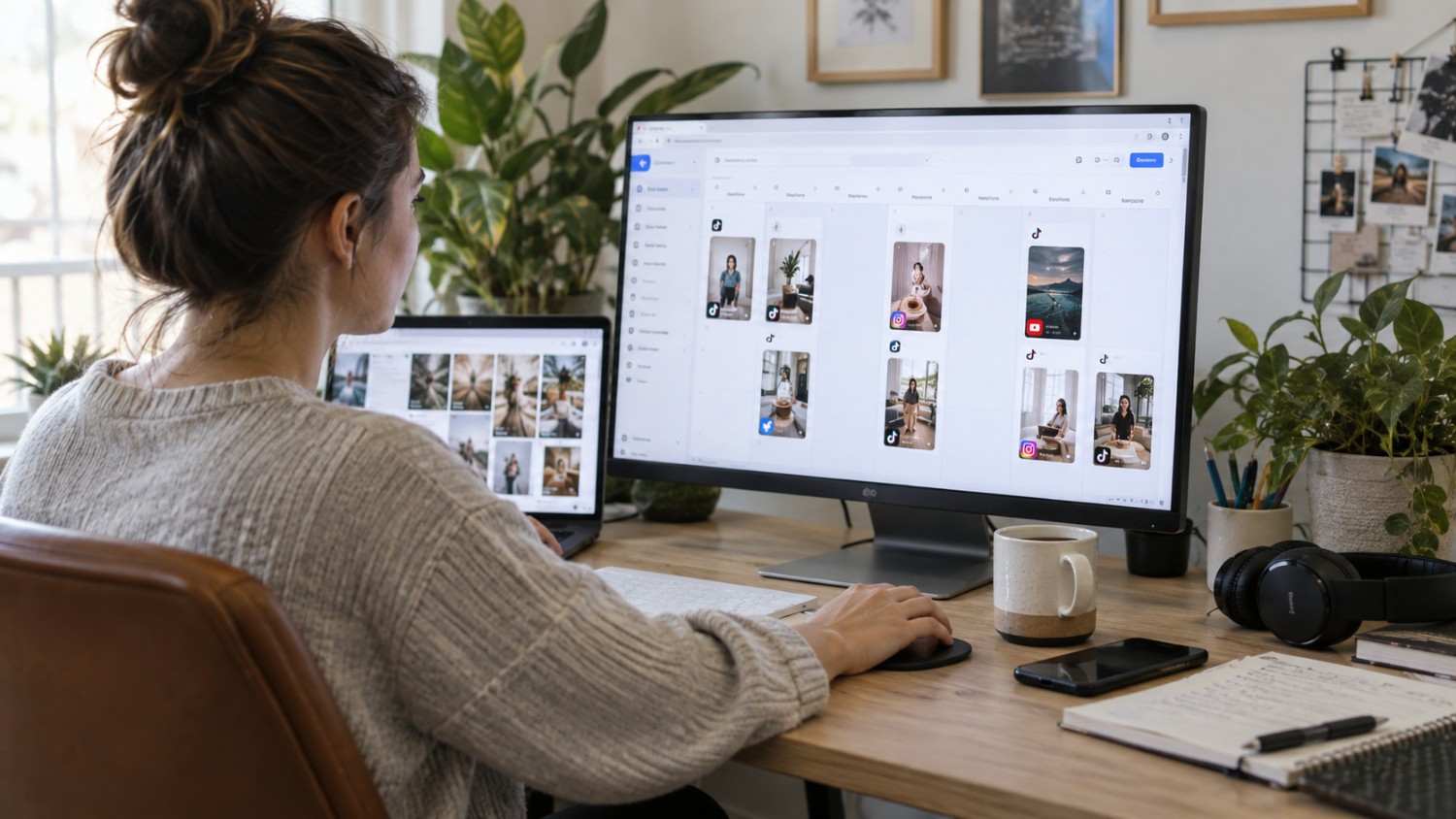
If you’re curious about the best tools for bulk uploading videos to YouTube, third-party options like Social by InstantDM, Buffer, and Hootsuite all support some version of bulk scheduling. YouTube Studio, on the other hand, still makes you schedule one Short at a time no matter what.
https://youtu.be/nFFaEua3h1A?si=1ZErRvvGSv7iRqtE
How to Bulk Schedule YouTube Shorts
Once you are posting regularly, bulk scheduling saves real hours, and it is worth building a proper system around it instead of improvising week to week.
Start by editing everything in one dedicated session, then export the files with a consistent naming convention so you are not hunting through a messy folder later. Something like 20260206_HookAboutCoffee.mp4 keeps things organized without much extra effort. From there, upload everything to YouTube Studio and set each one to Private while you finish prepping.
Next comes metadata. Add titles, descriptions, and tags across all of them, sticking to consistent keyword themes for Shorts that are related to each other. This is also where YouTube Studio hits its limit, since it still only lets you schedule one Short at a time, so you will need to set a separate date and time for each video individually.
For genuine bulk scheduling, that is where a tool like Social by InstantDM comes in. You upload all your Shorts, set the publish times, and let the tool handle the actual rollout instead of repeating the same manual steps over and over.
The short version is that YouTube Studio was never built for true bulk scheduling. If you are posting more than a couple of times a week, a third party tool stops being optional and starts being the only realistic way to keep up.
For a simpler, single video setup, the process is basically what was covered earlier. Upload your video in YouTube Studio, set visibility to Schedule, pick your date and time, and click Schedule. It publishes on its own once that time arrives. Anything beyond one video at a time, though, and a third party tool is going to save you a lot of clicking.
Best Time to Schedule YouTube Shorts
Timing genuinely affects reach, especially in that first hour or two after a Short goes live. Here is what the data is showing for 2026.
Peak Times
Friday at 4 PM, 6 PM, or 7 PM local time consistently comes out on top. Saturday at 12 PM, 3 PM, or 6 PM is close behind, and Sunday at 12 PM or 3 PM rounds out the strongest windows across the week.
Good Times
Weekdays around 12 PM or 5 PM tend to hold up reasonably well too, along with weekends at 10 AM or 2 PM, even if they do not quite match the peak windows above.
Times to Avoid
Early mornings before 8 AM tend to fall flat, and the same goes for late nights after 10 PM and Monday mornings specifically, which consistently see weaker initial engagement than the rest of the week.
Friday at 4 PM edges out everything else as the single best slot for YouTube Shorts in 2026 based on the data available, though your audience might behave differently depending on time zone and habits. Checking your own YouTube Analytics is always going to be more reliable once you have enough data built up to trust it.
How to Find Your Best Time in YouTube Analytics
General recommendations are a decent starting point, but your specific audience might be active at completely different times, so it is worth checking your own numbers directly rather than assuming.
Open YouTube Studio and head over to analytics.youtube.com. From the left sidebar, click Audience, this is the section that actually shows you when your viewers are online. Scroll down to the chart labeled When your viewers are on YouTube, and you will see exactly which days and times your specific audience tends to show up.
Once you have that, start scheduling your Shorts around those peak windows instead of leaning entirely on general advice. And do not treat this as a one time check. Try a few different times, keep an eye on how each one performs, and keep adjusting based on what your actual audience responds to, since that data will always beat a generic recommendation.
Recommended Posting Times for New Channels
If your channel is brand new, you won’t have enough audience data yet, so here’s what to do in the meantime.
Lean on the general peak times covered earlier as your starting point, Friday at 4 PM, Saturday at 12 PM, and Sunday at 3 PM are all reasonable places to begin. What matters more than nailing the perfect time right away is posting consistently, aim for three to five Shorts a week on a fixed schedule. That consistency is what actually builds early momentum, far more than any single well timed post ever will.
Give it two to four weeks, then go back and check your analytics. Once you have real data from your own audience, adjust your schedule to match when they are actually active instead of continuing to guess.
If you are trying to figure out how to automate your uploads entirely, the answer is a third party scheduler, something like Social by InstantDM. Upload your Shorts, set the publish times, and the tool takes it from there. Set up recurring schedules within the tool and you can push this even further over the long run.
Does Scheduling YouTube Shorts Affect Views?
No, and this is one of the more persistent myths floating around. Here is what is actually going on behind the scenes.
YouTube treats scheduled Shorts exactly the same as manually published ones. There is no separate distribution pathway, and no hidden penalty, just because a video happened to be scheduled ahead of time instead of published in the moment.
There is a real consistency benefit worth mentioning too. Posting regularly signals an active, reliable channel, and scheduling lets you keep that consistency up without needing to show up and manually hit publish every single day.
There is also a genuine timing upside. Posting during peak hours tends to increase initial engagement, and strong early engagement signals quality to the algorithm, which can help push a Short out to a wider audience early on.
Just keep in mind that scheduling is a tool, not a strategy on its own. It helps you post consistently and at the right times, but the content still has to actually hold up. No amount of perfect timing saves a Short that just is not engaging.
YouTube Shorts Pre Publishing Checklist
Run through this before you schedule every single Short, even the ones that feel obviously ready to go.
Check the video quality first. Is it clear, well lit, and properly framed? Does it meet YouTube’s basic technical requirements? Then look at length, is it under sixty seconds, and does it hook viewers within the first second or two?
Move on to your title, is it descriptive, built around relevant keywords, and under one hundred characters? Your description should clearly explain what the Short is about and include a couple of relevant keywords too. Hashtags need to land somewhere between three and five, and the Shorts tag should always be in there.
Take a second look at your thumbnail, does it actually look clear and attention grabbing, or is it just whatever frame YouTube happened to grab automatically? Check your tags to make sure they genuinely help YouTube understand what the content is about. And finally, double check your schedule, is the publish time actually sitting inside peak hours, and does it line up with the rest of your content calendar?
The Bottom Line
YouTube Shorts can be scheduled natively through YouTube Studio or through a third party tool, and doing so genuinely saves time and keeps you consistent without costing you any reach.
In 2026, YouTube still treats scheduled Shorts exactly the same as ones published manually, so there is no algorithmic downside to planning ahead. Scheduling during peak times just gives you a better shot at strong initial engagement right out of the gate.
If you are juggling several platforms at once, a tool like Social by InstantDM can help schedule your Shorts alongside everything else, with a bit of AI support for captions and hashtags so you are not starting from a blank page every time.
Pick a tool, upload your Shorts, set your schedule, and watch your consistency improve from there. That is really all there is to it.
Sources for This Guide:
References:
https://sproutsocial.com/insights/how-to-schedule-youtube-shorts/ https://later.com/blog/schedule-youtube-shorts/
Frequently asked questions
Can you schedule YouTube Shorts on mobile?
As of 2026, the mobile app supports uploading, but full scheduling generally still needs YouTube Studio on desktop. You can technically get to YouTube Studio through your phone's browser, though the desktop experience is noticeably smoother.
Does scheduling YouTube Shorts hurt views?
No. YouTube treats scheduled Shorts exactly the same as manually published ones, and the algorithm does not tell them apart. Scheduling at peak times just helps maximize initial engagement, it does not hurt it in any way.
What is the best time to schedule YouTube Shorts?
Friday at 4 PM, 6 PM, or 7 PM local time tends to perform best overall, with Saturday and Sunday afternoons also holding up well. Your own YouTube Analytics will always be the most reliable source for your specific best times.
How many YouTube Shorts should I post per week?
Most creators find that three to five per week works best. Consistency matters a lot more than volume, so posting regularly beats dumping everything out at once and then going quiet for weeks.
Can I bulk schedule YouTube Shorts?
Not natively, no. YouTube Studio still makes you schedule one Short at a time. Third party tools like Social by InstantDM let you batch schedule several Shorts in a single session instead of repeating the process manually for each one.