How to Go Live on Instagram: Setup, Co-Hosts & Replays (2026)
Instagram Live in 2026 requires 1,000 followers and a public account. Here's how to set it up, add co-hosts, and save replays.
TL;DR
Instagram Live changed in a way that caught a lot of people off guard this year. You now need a public account with at least 1,000 followers before the feature even shows up for you, which wasn’t the case before. Once you clear that bar, you can go live from your phone or your computer, bring on a co host, schedule a session in advance so people actually show up, and keep a replay around for up to 30 days afterward. I’ve been through the whole setup myself, computer streaming included, and I’ll walk through exactly how each piece works. If you also want to promote your Live sessions somewhere beyond Instagram itself, Social by InstantDM handles scheduling announcements across eight platforms at once, which saves a fair bit of manual posting.
Introduction
I remember when going live on Instagram was something literally anyone could do the moment they downloaded the app. That changed this year, and I got a firsthand lesson in it when a friend of mine, sitting just under a thousand followers, tried to go live and simply couldn’t find the option anywhere in her camera screen. She assumed it was a glitch. It wasn’t. Instagram had quietly tied the feature to a follower threshold, and plenty of people are still discovering that the hard way.
So I put together everything I’ve learned about actually using Live in 2026, from the basic steps of starting one to the new requirements to setting up a proper stream from a computer with real equipment, bringing on a co-host, scheduling ahead of time, and even how celebrity Lives work if you’re more interested in watching than broadcasting yourself. Whether you’re trying to go live for the first time or just trying to figure out why the option disappeared on you, this covers it.
One thing worth saying upfront is that the follower requirement change genuinely reshuffled how a lot of smaller creators think about Live. It used to be a tool you could reach for on day one, even with a handful of followers, just to build the habit of showing up regularly. Now it’s more of a milestone you work toward, which changes the order most people approach growth in. If you’re under that threshold, the good news is that nothing about the rest of this guide is wasted, you’ll just want to bookmark it for once you clear the bar.
How to go live on Instagram step by step
Let me start with the basics, because going live is genuinely simpler than most people expect once you know where to look.
Open Instagram and swipe to the right to pull up the camera. At the bottom of that screen, scroll across until you land on Live mode. Check that the Live option actually shows up for you, and if it doesn’t, that usually points to one of the requirements I’ll cover in the next section rather than anything being broken on your end.
Once you see it, tap the circular button to kick off your broadcast. From there you’re live, talking to whoever’s watching, answering questions as they come in, and interacting in real time the way the format is really meant to work.
When you’re finished, tap end in the top right corner. Instagram will then ask what you want to do with the recording, whether that’s sharing the replay to your feed, saving it quietly to your archive, or just discarding it entirely if you’d rather not keep it around.
That’s genuinely the whole process, and it takes about 30 seconds to actually get started. The harder part, honestly, is getting people to show up and watch, which is really what the rest of this guide is about.
It’s worth mentioning that Instagram gives you a small heads up notification to your followers the moment you go live, so at least some of your existing audience will see a prompt pop up even without any promotion on your part. That’s a nice built in boost, though it only reaches people who happen to have the app open around that time, which is exactly why scheduling ahead, something I’ll get into further down, tends to pull in a bigger crowd than just starting cold.
Instagram Live requirements in 2026
This is where things shifted, so let me walk through exactly what’s needed now.
Your account needs to be public. A private account simply won’t have access to Live at all, no matter how many followers you have behind it.
You now need at least 1,000 followers, and this is genuinely new. Before this year, anyone could go live regardless of their follower count. That’s no longer true, and Instagram now gates the feature behind that thousand follower mark.
A Business or Creator account isn’t strictly required, but it opens up extra features worth having, particularly Live Producer, which is what lets you stream from a computer instead of just your phone.
A stable connection matters more than people think. Whether it’s WiFi or cellular, a shaky connection is the single fastest way to end up with buffering or dropped frames mid broadcast.
And keeping the app updated matters too. Running an outdated version of Instagram can quietly cause issues with Live that have nothing to do with your account or your connection at all.
If you’re not there yet on followers, the honest path forward is just growing your account the normal way, posting consistently, engaging with the people who do follow you, and using hashtags thoughtfully to reach people who haven’t found you yet.
I’d add that Reels tend to be the fastest lever for closing that follower gap specifically, more so than static posts, since they’re the format Instagram pushes hardest toward people who don’t already follow you. If getting to that thousand follower mark is your immediate goal, leaning into Reels for a few months tends to move the needle faster than almost anything else you could focus on.
Why can’t I go live on Instagram?
I get asked this constantly, so let me run through the usual suspects.
Not having 1,000 followers is by far the most common reason. That threshold is new enough that a lot of people simply haven’t caught up with the change yet.
A private account will also block you outright. Switching to public in your settings is a quick fix if that’s the issue.
Running an outdated version of the app can quietly cause the Live option to misbehave or disappear entirely, so updating is always worth trying first.
If your account’s been restricted for violating community guidelines, live access can get temporarily pulled along with other features, which is a separate issue from anything technical.
And sometimes it really is just a glitch. The option can vanish for no obvious reason at all.
This actually happened to me once. The Live button just wasn’t there one afternoon; no explanation, nothing had changed on my end. I force-closed the app, reopened it, and it was back like nothing happened. Sometimes the simplest fix genuinely is the right one.
If none of the usual fixes work, it’s worth checking Instagram’s own help centre or support account directly, since occasionally these disappearances are tied to a wider rollout issue affecting a batch of accounts rather than anything specific to you. In those cases, waiting it out for a day or so tends to resolve things on its own without any action needed on your end at all.
How to go live on Instagram from a computer
Most people have no idea this is even possible, so let me walk through it properly.
You’ll need a Business or Creator account to start, since this feature isn’t available on personal accounts.
From there, head to business.facebook.com and connect your Instagram account if you haven’t already.
Inside the Instagram section, click into Live Producer. That’s where you’ll set up your stream key and connect whatever streaming software you’re using, whether that’s OBS or StreamYard or something similar.
Once everything’s configured, click go live right there in the Live Producer dashboard, and you’re broadcasting from your computer rather than your phone.
The real advantage here is production quality. Streaming from a computer opens the door to an external camera, a proper microphone, and dedicated streaming software, all of which add up to something that looks and sounds a lot more polished than a phone propped up on a stack of books.
There’s a practical tradeoff worth knowing about too. Streaming from a computer through Live Producer tends to introduce a slight delay compared to going live directly from your phone, usually just a few seconds, but enough that live chat can feel a touch out of sync if you’re reading comments in real time. It’s a small price for the production upgrade but worth knowing ahead of time so it doesn’t throw you off mid-broadcast.
How to use an external camera or streaming software for Instagram Live
If you want to push your production quality further, here’s what actually makes a difference.
For an external camera, you can connect a DSLR, a mirrorless camera, or even a decent webcam to your computer using a capture card, something like an Elgato Cam Link works well for this. From there, OBS or StreamYard lets you set up your scene properly before you ever go live.
On the software side, OBS Studio is free and remarkably capable once you get past the initial learning curve. StreamYard runs entirely in your browser and tends to be the friendlier option if you’d rather not deal with a steeper setup process. Both work fine with Instagram Live through the Live Producer connection.
Audio deserves just as much attention as video, arguably more. An external microphone makes a noticeably bigger difference than most people expect. USB options like the Blue Yeti or the Rode NT USB are solid choices that don’t require a whole separate audio interface to use.
Lighting is the piece people skip most often, and it’s genuinely one of the biggest levers you have. A simple ring light or a softbox setup can transform how professional your stream looks without touching your camera or software at all.
Put an external camera, decent streaming software, and clean audio together, and the resulting stream stands out noticeably compared to the average phone broadcast.
None of this needs to happen all at once either. I started with just an external microphone plugged into my phone before I ever touched a capture card or streaming software, and that single change alone made a bigger difference to how professional my Lives felt than I expected. Adding the camera and lighting came later, once I’d confirmed I actually wanted to keep going live regularly enough to justify the setup.
How to invite someone to join your Instagram Live
Bringing on a co-host is genuinely one of the better ways to reach people who don’t already follow you, and the process itself is pretty simple.
Start your live broadcast as you normally would. Tap the people icon sitting in the bottom right corner of the screen, then search for the username of whoever you want to bring in. Tap send request from there.
That person gets a notification on their end, and once they accept, their video shows up right alongside yours in a split-screen layout. If you need to remove them at any point, tapping their name gives you the option to remove them entirely from the live.
Co-hosting genuinely works best when both people come prepared. Coordinate roughly what you’ll talk about beforehand, take turns rather than talking over each other, and make a point of interacting with both audiences rather than just your own.
I’d also suggest picking a co-host whose audience genuinely overlaps with yours in some meaningful way, whether that’s a shared niche or a similar tone, rather than just someone with a big following. A mismatched pairing tends to produce a vibe where neither audience feels particularly at home, while a well-matched one tends to leave both sides genuinely curious to follow the other person afterward.
How to schedule an Instagram Live in advance
Scheduling ahead of time is a simple way to make sure people actually show up rather than stumbling onto your Live by accident.
Open Instagram and swipe over to the camera the same way you would for a normal Live. Scroll to Live mode, and from there tap the calendar icon, or whatever labels the schedule option on your version of the app. Set your date, time, and a title that gives people a reason to actually tune in.
Once that’s set, share the scheduled Live to your Stories so your followers actually see it’s coming. When the scheduled time rolls around, Instagram will send you a notification prompting you to actually start the broadcast.
Scheduling is genuinely useful for building a bit of anticipation ahead of time. Promoting that scheduled Live across whatever other platforms you’re active on tends to pull in a noticeably bigger crowd than just relying on Instagram alone to surface it.
This is actually where I’ve found a scheduling tool earns its keep beyond just the live itself. I use Social by InstantDM to push the announcement out across other platforms the moment I’ve set the date on Instagram, rather than manually copying the same message into four or five different apps by hand. It’s a small thing, but it means the announcement actually goes out consistently instead of getting forgotten in the rush of everything else going on that week.
Are there any popular platforms to view celebrity IG lives?
If you’re more interested in watching than broadcasting, here’s where celebrity lives actually show up.
Instagram itself is obviously the most direct place. Following the celebrity and turning on post notifications is really the only reliable way to catch a live the moment it starts.
Instagram’s own replay feature is your backup if you miss the live moment itself. Checking the celebrity’s profile for a saved replay is worth doing, since those tend to stick around for up to 30 days.
Third-party apps that claim to aggregate live streams exist, but I’d steer clear of most of them. They’re often unreliable and tend to skirt Instagram’s own terms of service in ways that aren’t worth the risk.
YouTube sometimes has reposted versions if a celebrity or their team chooses to put the recording up there afterward, so a quick search for the celebrity’s name alongside ‘Instagram Live’ can turn something up.
X, formerly known as Twitter, is usually where fans clip and share highlights, which is a decent way to catch the best moments even if you missed the whole thing.
Honestly, the most reliable approach is still just following the celebrity directly and keeping notifications on. Everything else is a workaround for when that doesn’t pan out.
Instagram Live celebrity streams
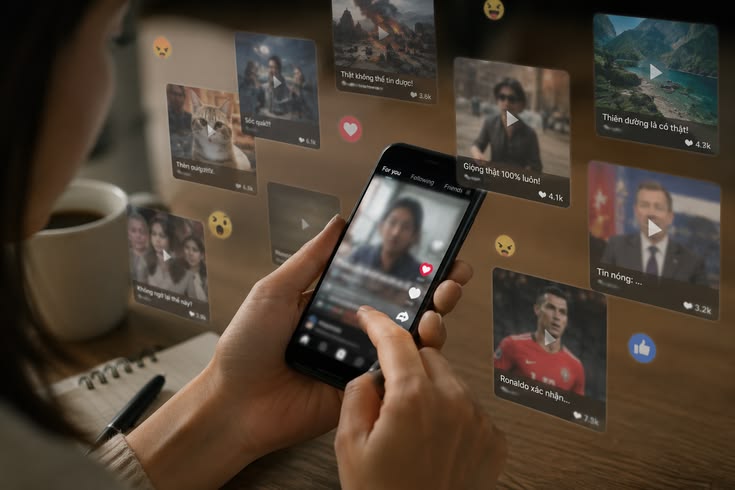
Celebrity Lives consistently rank among the most watched content on the entire platform, and there’s a reason for that.
They tend to feel genuinely unscripted, which is part of the appeal. Fans respond to seeing someone they admire in a casual, unfiltered setting rather than through a heavily produced piece of content.
There’s real interaction too. Plenty of celebrities take the time to answer fan questions live, and that direct back and forth creates a sense of connection that a normal post simply can’t replicate.
Some use the format to share something exclusive, an early announcement, a look behind the curtain on a project, or just a personal moment they wouldn’t post anywhere else.
And a lot of it is simply entertaining on its own terms, whether that’s someone cooking, running an impromptu question session, performing a bit of music, or just chatting casually with whoever’s watching.
If catching these Lives matters to you, following the celebrity directly and keeping notifications turned on is the most reliable path. Fan accounts that repost Live announcements can help fill in the gaps too.
What are the best tips for engaging with celebrity IG live sessions?
If you’re hoping to actually get noticed during one of these, here’s what tends to work.
Ask your question early. Comments pile up fast once a big Live gets going, so getting yours in within the first minute or two gives it a better shot at being seen.
Be specific rather than generic. Something like a simple compliment tends to get buried instantly, while a genuinely specific question stands a much better chance of catching attention.
Use the celebrity’s name directly in your comment. It’s a small thing, but it does seem to increase the odds they’ll actually notice and respond.
Stay patient. These sessions can have thousands of people watching at once, so an immediate reply is more the exception than the rule.
If you’re enjoying the session, share it with friends. That kind of organic sharing genuinely helps the celebrity reach a wider audience, and it’s a small way of supporting content you actually like.
And don’t ignore the rest of the audience either. Engaging with other people’s comments and reactions helps build the kind of community feel that makes these sessions memorable in the first place.
Can I save or replay celebrity IG live videos?
Yes, though there are real limits worth understanding.
The decision to save a replay ultimately sits with the celebrity themselves. If they choose to keep it, it’ll stay available on their profile for up to 30 days afterward.
You personally can’t save or download someone else’s Live video. Instagram simply doesn’t allow that, regardless of how much you enjoyed the session.
What you can do is watch the replay if one was saved. Checking the Live section on their profile page is the way to find it.
Some celebrities go a step further and repost highlight clips separately to their feed or Stories, which is worth checking even if the full replay isn’t available.
Realistically, the best approach is just catching the Live as it happens. If you miss it, checking the profile afterward for a saved replay is your next best option.
Frequently asked questions
How many followers do I need to go live on Instagram in 2026?
You need at least 1,000 followers and a public account before Live becomes available to you.
Can I go live on Instagram from my computer?
Yes, though you’ll need a business or creator account first. From there, Instagram’s Live Producer feature is what actually lets you stream from a computer instead of your phone.
How do I invite someone to join my Instagram Live?
Start your broadcast, tap the people icon, search for their username, and send the request. Once they accept, they’ll show up alongside you in a split-screen format.
Can I save my Instagram Live replay?
Yes. Once your live ends, you can choose to share it to your feed, tuck it away in your archive, or discard it entirely. Anything you save stays available for up to 30 days.
How do I schedule an Instagram Live?
Open Instagram, head into Live mode, tap the calendar icon, set your date and time, and share the scheduled live to your stories so people know it’s coming.
The bottom line
Going live on Instagram in 2026 is still fairly straightforward once you clear the new bar Instagram put in place, a public account with at least 1,000 followers behind it.
Beyond that requirement, the feature set is genuinely strong: co-hosting, scheduling ahead of time, computer-based streaming with real equipment, and replays that stick around long enough for people to catch up later. Used well, all of it adds up to live content that actually builds a community rather than just a one-off broadcast.
If you want to get the word out about an upcoming live beyond just Instagram itself, Social by InstantDM makes that part painless, letting you schedule the announcement across eight platforms at once and lean on AI to help draft the promotional post rather than writing it from scratch every time.