Instagram Feed Preview Apps for iPhone and Android
Apps to preview your Instagram feed before you post. iPhone and Android feed planners, including Preview App and other grid preview tools.
TL;DR:
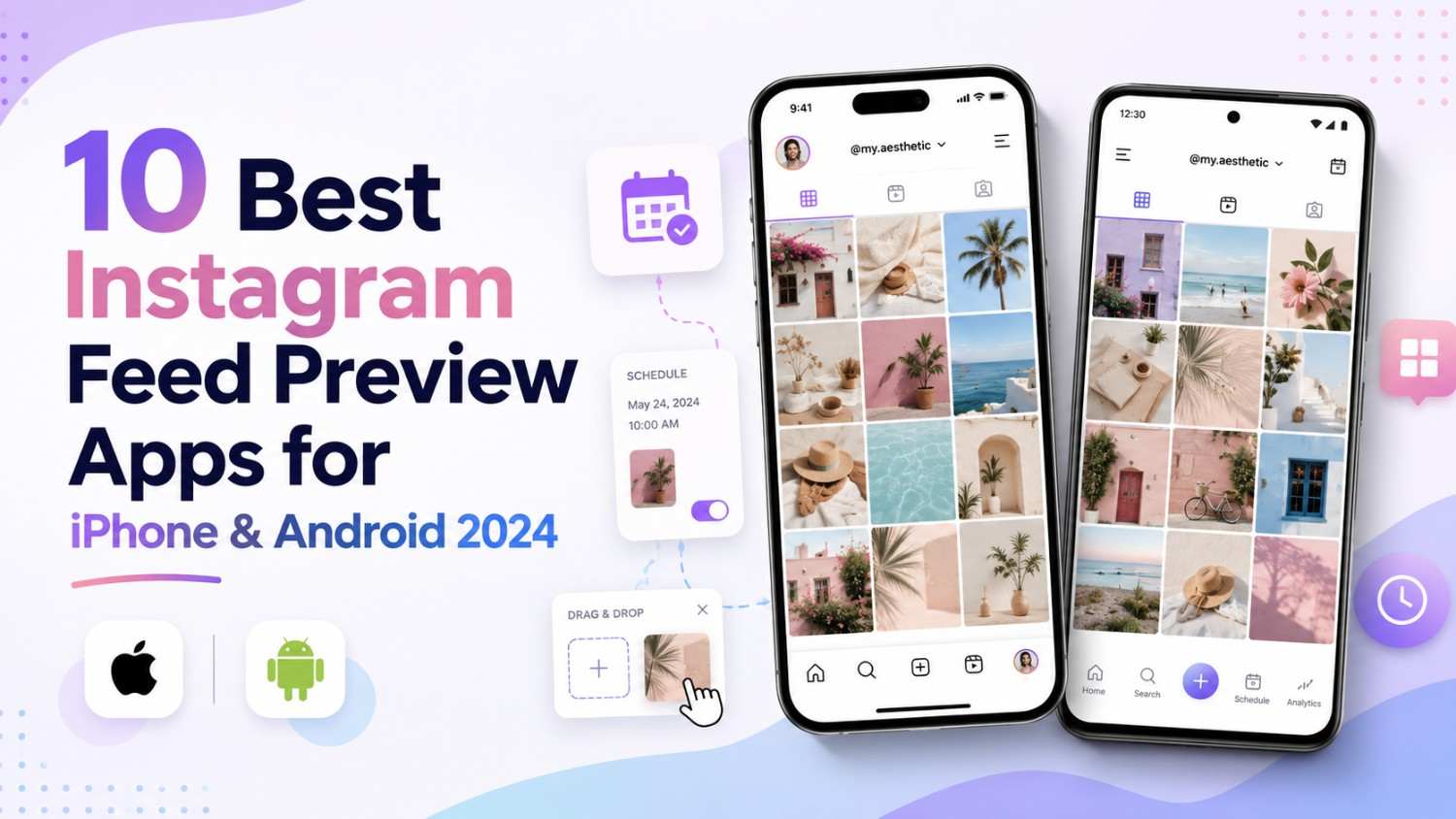
Apps that preview Instagram feeds allow you to see how your posts will look before posting. Best apps in 2026 Planoly: Grid planning Social by InstantDM: AI-powered scheduling across 8 platforms Later: Multi-platform scheduling Preview: Simplicity The free options are good enough for the beginner, but paid plans unlock scheduling, analytics, and team features.
What are the best apps for previewing my Instagram feed?
Okay, here’s the deal. The first thing people see when they land on your profile is your Instagram grid. You have about three seconds to make an impression in 2026, with attention spans shorter than ever. If your grid looks crazy – random colours, inconsistent styles, no visual pattern – people bounce. They follow if it’s seemingly deliberate and cohesive.
That’s where feed preview apps come in. Preview how your posts will look together before you publish. Rearrange, swap, preview different layouts and make sure everything fits your visual brand.
I’ve tried a bunch of these apps in the last month. These are the ones that do work.
How to plan my Instagram feed visually?
It’s easier than you think. Here is how I do it.
Step 1: Select a tool. Choose one of this list according to your needs and budget.
Step 2: Upload your Content Direct uploads from your phone or computer are supported by most apps.
Step 3: Order your grid. Drag and drop the posts to the correct layout. Look for colour flow, variety of subject and overall balance.
Step 4: View the complete grid. Look at the big picture. Step back. Does it feel together? Any transitions that feel awkward?
Step 5: Adjust if necessary. Switch out posts, reorder them, or create new content to fill in the gaps.
Step 6: Schedule or Save Once you’re happy, either schedule them to go live automatically or save them to post manually.
Once you get the hang of it, the whole process takes about 15 to 20 minutes.
1. Preview App: Easiest
The app I recommend the most for beginners is Preview. The interface is clean, the grid preview is great and mobile app is easy to use.
What I tried: I uploaded 12 photos, arranged them in a grid and added filters. The entire process took about 10 min.
Strengths: Easy to use interface, great grid preview, built in filters, analytics on paid plans.
Limitations: No multi-platform scheduling, free plan is limited, analytics are very basic.
Best for: Instagram only users wanting a simple grid planner.
Pricing: free plan is available. Starts at $8/month for Pro.
2. Social by InstantDM Ideal for AI-powered scheduling
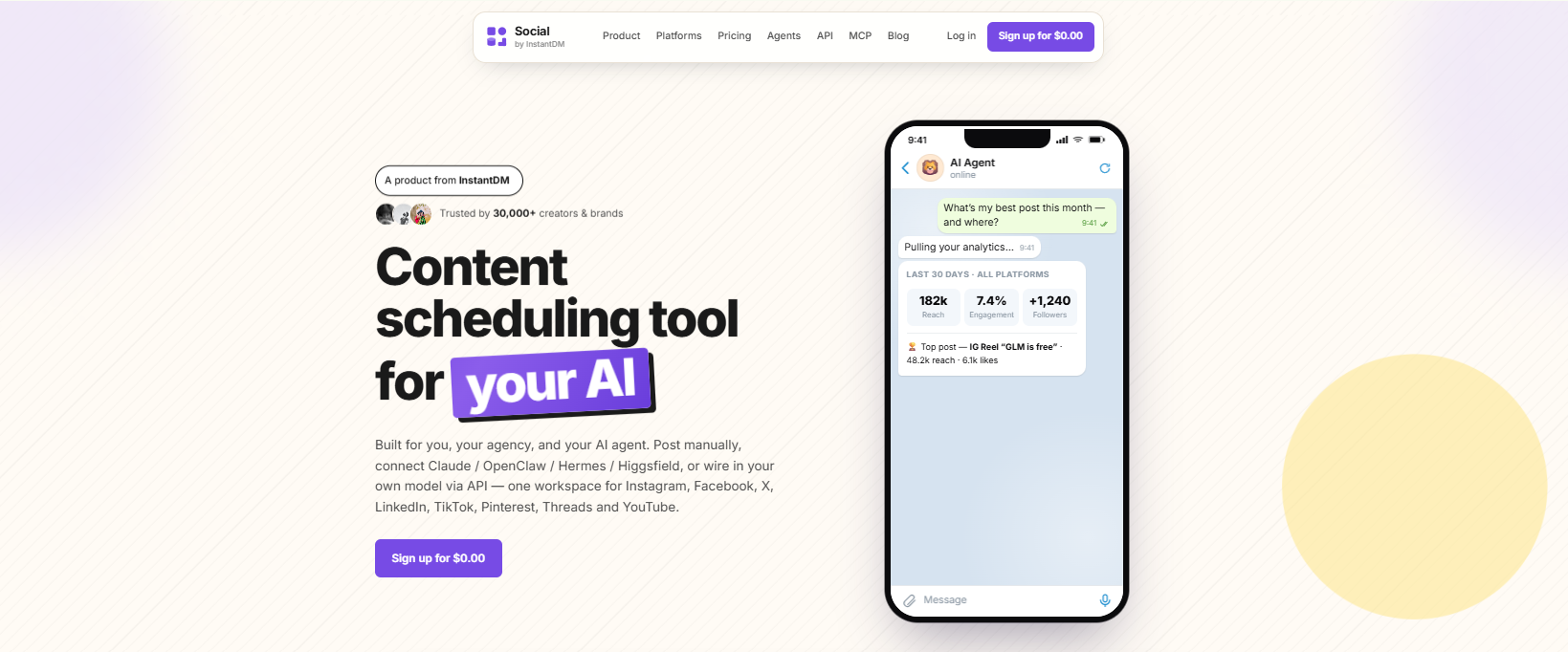
Social by InstantDM (https://socialbyidm.com) is the only tool that does one thing that none of the others do: AI-powered scheduling. You can link AI agents like Claude or ChatGTP through their MCP server and have content written and scheduled automatically.
What I did: I connected my Instagram account and scheduled posts for 8 platforms all from one dashboard. The AI agent integrated seamlessly.
Pros: Supports 8 platforms, integrates with AI agents, MCP server and public API, unlimited scheduled posts, free plan is very generous.
Limitations: It’s a newer platform and the grid preview isn’t as polished as it is on Planoly.
Ideal for: Creators seeking AI-driven scheduling and cross-platform capabilities.
Pricing: Free plan is available. Unlimited posts on paid plans.
3. Planoly: Best for grid layout planning
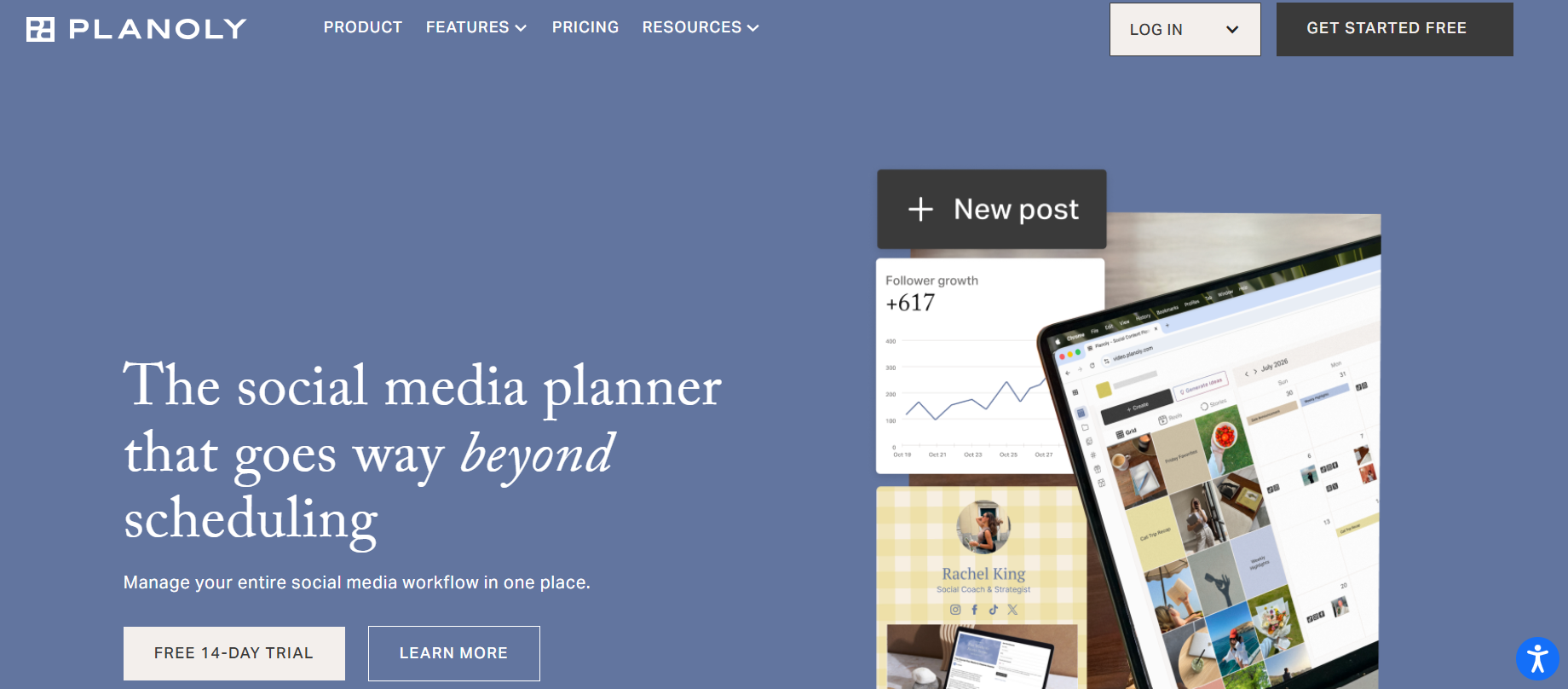
Specialist: Planoly It was designed for Instagram grid planning and it does that better than anyone else. Those are the most accurate of the bunch, the grid preview.
What I did: I uploaded 15 photos and messed around with different layouts. The grid preview looked just like my real Instagram feed.
Pros Best grid preview Clean interface Drag and Drop works great Mobile App is great
Limitations Limited platform support, Basic analytics, No AI capabilities.
Best for: Creators who care about Instagram aesthetics.
Pricing: Free plan. Growth: Starts at $28/month.
4. UNUM: Best for creators who live on their phones
UNUM was made for people who live on their phones. The grid preview is fine and the editing tools are solid.
What I did: I scheduled a whole week’s worth of content on my phone. The interface was intuitive and the grid preview was type true.
PROS: mobile-first design, nice grid preview, editing tools included, the free plan is usable.
Limitations: Desktop experience is limited, analytics is basic.
Best for: Creators who schedule everything on their phone.
Pricing: Free plan available. Pro starts at $18 per month.
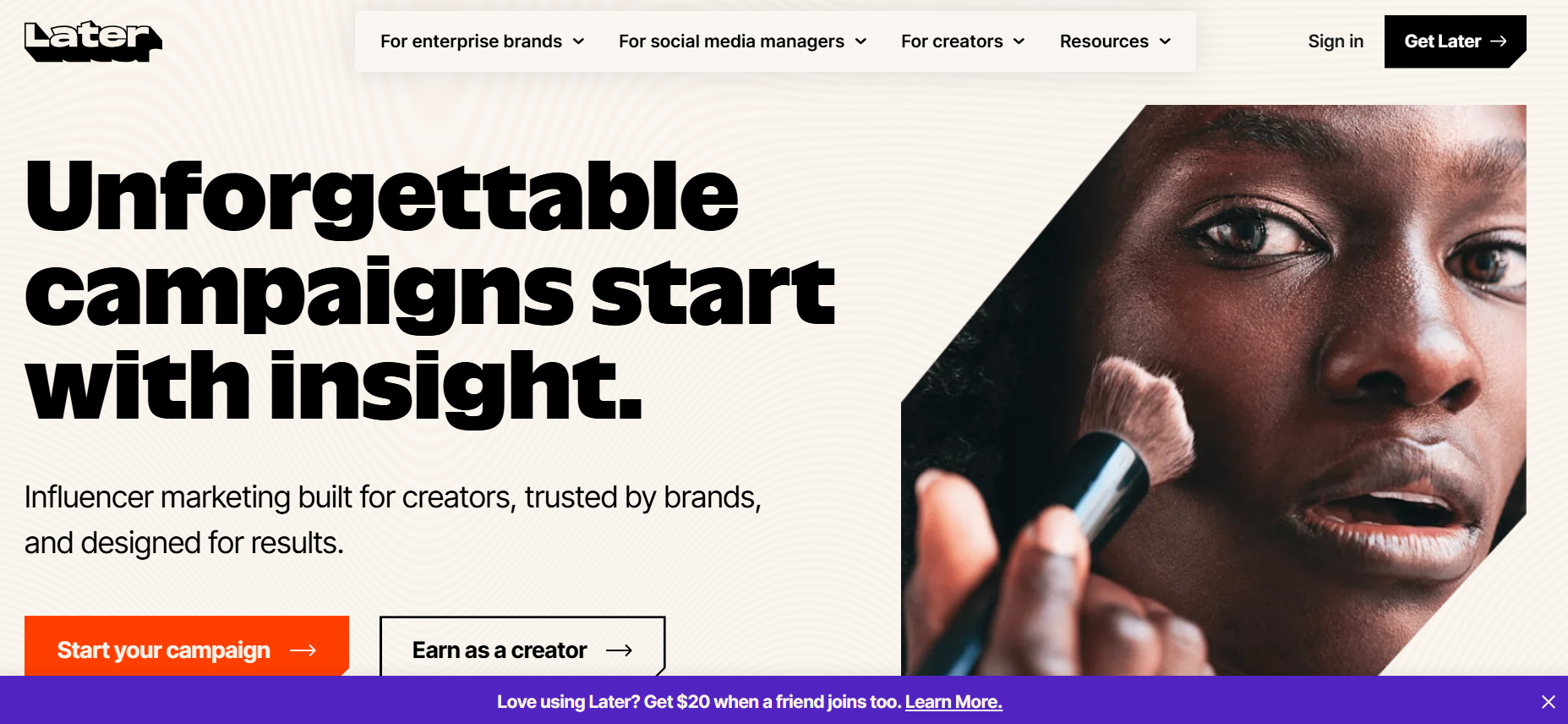
5. Later: Best for scheduling across multiple platforms
Later used to be an Instagram scheduler but now manages multiple platforms. Grid preview is good, not the best but the scheduling and analytics make up for it.
What I did: I connected Instagram, TikTok and LinkedIn. Scheduling worked on all three. The preview of the grid was dead-on.
Strengths: Supports 10+ platforms, link-in-bio page, good analytics, content library.
Limitations: Limited free plan, grid preview not as polished as Planoly.
Best for: Creators posting to multiple platforms.
Pricing: They have a free plan. The starter price is $25 per month.
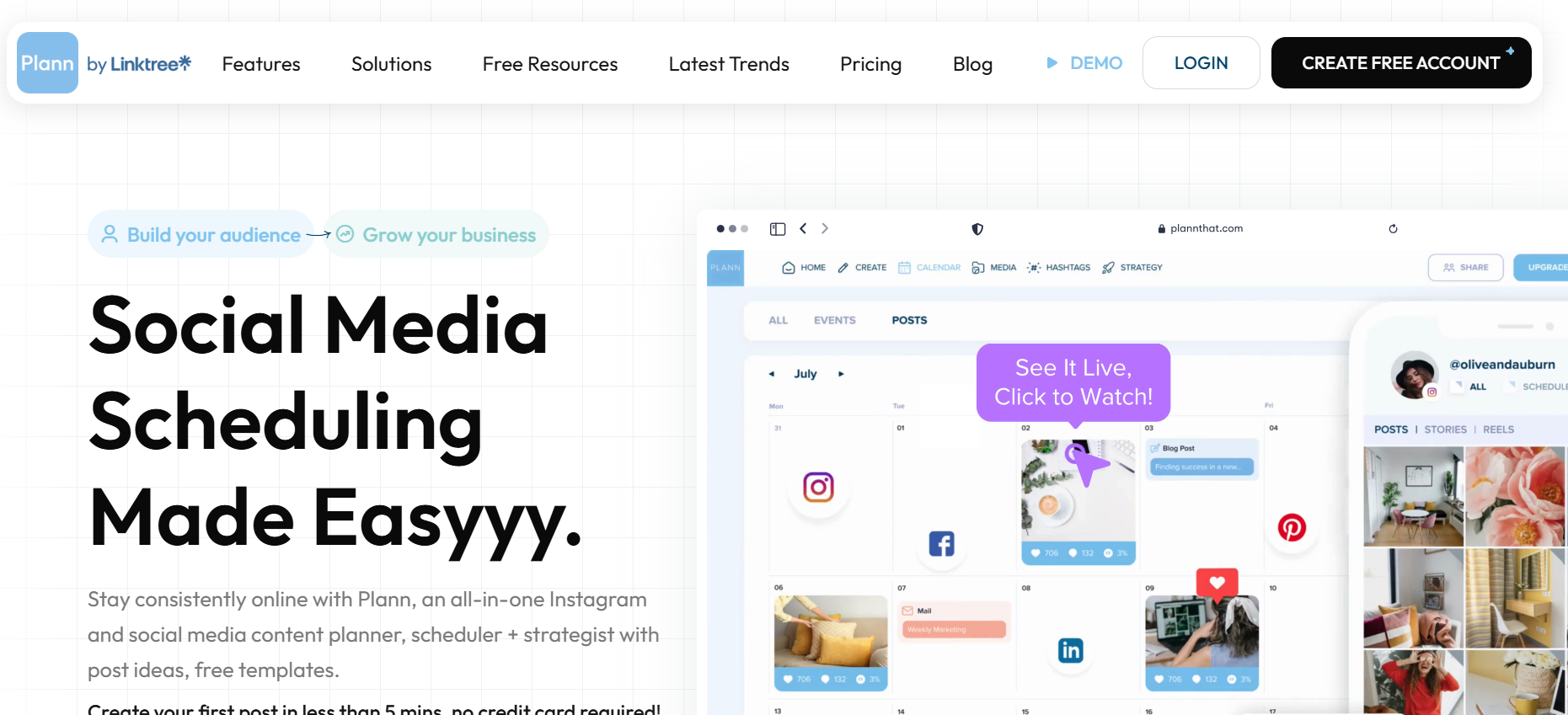
6. Plann: Great for batching content
Plann lets you build a whole week of content in one go and see how it all fits together in the grid visually.
What I did: I made 9 posts at once and placed them in the grid. The preview showed me exactly what my feed would look like over the next week.
Strengths: Good for batch content, clean interface, drag and drop is good
Limitations: Basic platform support, basic analytics.
Ideal for: Creators who produce content in batches.
Pricing: Free plan offered. Pro begins at $15/month.
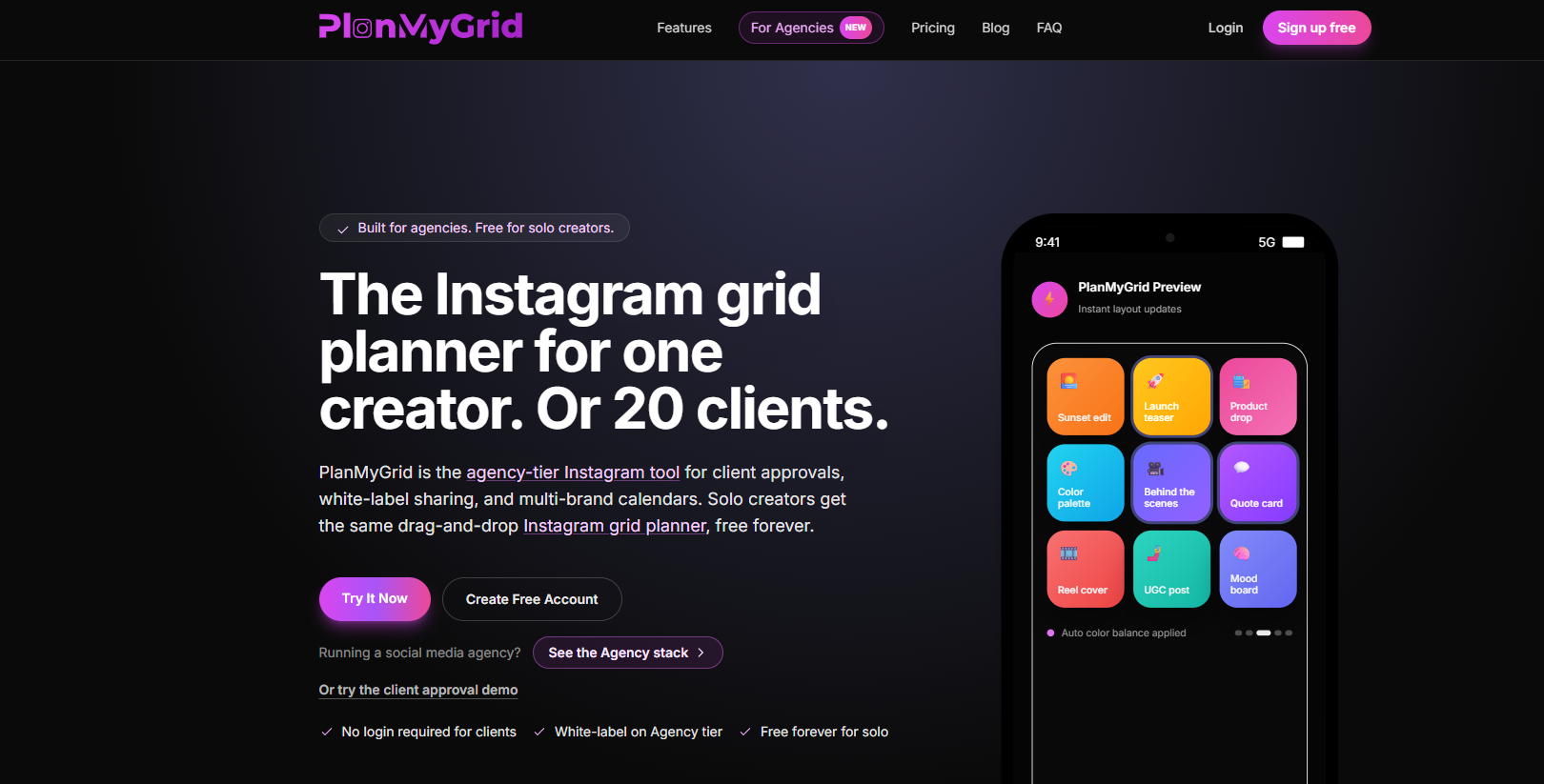
7. PlanMyGrid: Best free
PlanMyGrid is a browser tool, and you don’t need to make an account to see a live preview of your grid.
What I tested: I uploaded photos directly in my browser and put them in a grid. No sign up required. The preview was spot on.
Strengths: No registration required, works on any browser, completely free.
Limitations: No scheduling, no analytics, limited features.
Best for: Anyone who wants a quick preview of the grid without signing up.
Price: No cost. Pro plan for $9/month.
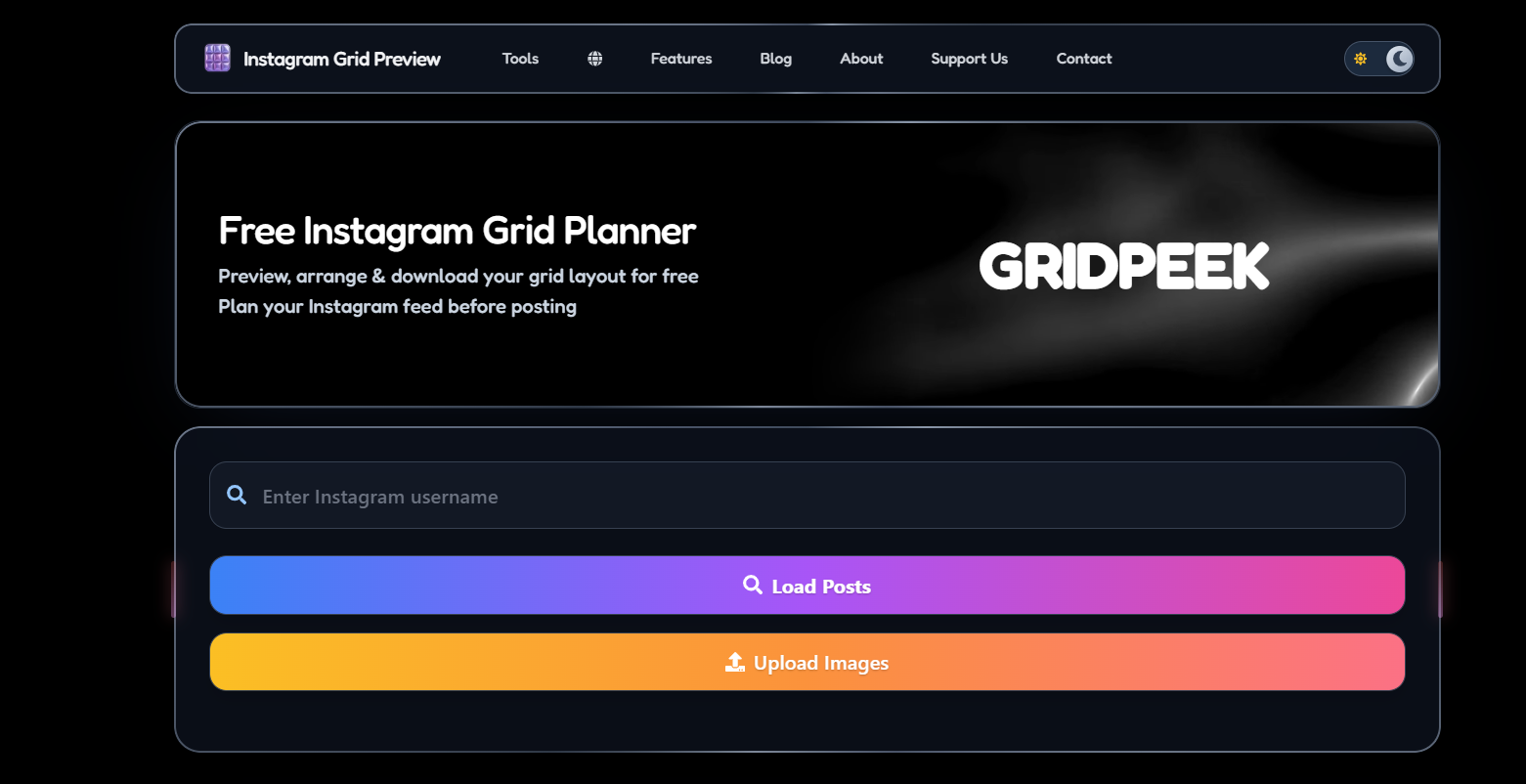
8. GridPeek: Best for those who make budgets
The simplest free solution is GridPeek. Upload your pictures, see the grid preview and rearrange them as you wish. Plain and simple.
What I tested, I uploaded 6 photos and put them in a grid The whole process took roughly 5 minutes.
The Good: Free to use, no signup, basic interface.
Limitations: No scheduling, no analytics, very basic.
Best for: Anyone wanting a quick, free peek at the grid.
Price: Free.
9. Canva: Best for designer-turned-creators
Canva is not a dedicated grid planner but is perfect for creating content to fit your grid aesthetic with its Instagram templates and design tools.
What I tested: I designed Instagram posts using Canva’s templates and downloaded them for my grid. The quality of design was good.
Strengths: Best design tools, Instagram templates, brand kit features, huge template library.
Limitations: It is not a grid planner, and it lacks scheduling and analytics capabilities.
Best for: Creators looking to create beautiful content for their grid.
Pricing: They offer a free plan. Pro starts at $13 per month.
10. Buffer: Ideal for straightforward scheduling
Buffer isn’t a grid planner, but it has the simplest scheduling features of all. If you just want to schedule posts with no learning curve, Buffer is the easiest option.
What I tested: I connected 3 accounts and scheduled a week’s worth of posts. The whole thing took about 15 minutes.
Pros: Easiest interface, pricing is transparent, free plan is decent.
Cons: No grid preview, analytics are basic.
Best for: Those who want simple scheduling without grid planning.
Pricing: Offers free plan. The Essentials plan is $6 per month per channel.
How to Preview Instagram Stories Before Posting
Stories are not the same thing as feed posts. And they disappear after 24 hours, so you can’t preview them in your grid. But that doesn’t mean you shouldn’t plan them.
Here’s how I preview Stories before posting.
Step 1: Construct your Story. Use Instagram’s in-app tools or a third party design app.
Step 2: Capture a screenshot. Screenshot your Story before you post it.
Step 3: Read it. Check the position of the text, the alignment of the sticker and the overall composition.
Step 4: Change. See something wrong? Fix it before you post it.
- When you’re ready, publish. If you like the preview, go ahead and publish your Story.
The entire process takes about 2 minutes. Not as sophisticated as feed grid previewing, but it works.
How to See Your Instagram Story Before Posting
There is no option to preview a Story on Instagram. You can’t preview your Story before publishing it. But there are ways around it.
The Screenshot Method Create your Story. Take a screenshot. Review. Post. Easy and efficient.
The draft technique. There are some apps that allow you to save your Story drafts. Create your Story, save it as a draft and come back to it later and post when you are ready.
The scheduling approach. Apps like Later and Social by InstantDM (https://socialbyidm.com) allow you to schedule Stories. You can preview them in the app before they go live.
The collaborative approach. If you’re working with a team, share your Story draft with the team to get feedback before posting.
None of these are perfect but better than posting blindly.
How to Schedule and Preview Instagram Stories on Any Device
Want to schedule Stories from your computer but make them on your phone? You need a cross-device tool.
Social by InstantDM does a good job of this. Create content on your phone, upload to the web dashboard and schedule from your computer. The Story preview works on both.
Later also has cross-device scheduling support. Upload your Story from your phone, schedule it from your computer and preview it in the app before it goes live.
The trick is to pick one that syncs between devices. Your preview tool only works on one device If your preview tool only works on one device, you’ll be switching between your phone and computer constantly.
Why Your Instagram Story Preview Isn’t Working and How to Fix It
Sometimes your Story preview won’t show up in scheduling tools. Here’s why and how to fix that.
Connection problem is the most common problem. Your Instagram account needs to be properly connected to the scheduling tool for the preview to work. Log out and log in to your account again.
Another reason is the format of the story. Some tools don’t support all Story formats — photos, videos, carousels and interactive stickers all behave differently. Ensure your Story is compatible with the tool’s capabilities.
Third is timing. If you try to schedule a Story too far into the future, the preview may not work. Schedule within 24 hours for the most accurate preview
If none of the above work, you can try clearing your app cache or updating your scheduling tool to the latest version.

Top Ways to See Instagram Stories on Mobile and Desktop
Mobile view. The easiest way is to build your Story on your phone, take a screenshot and review before posting. This will work on an iphone or android.
View on desktop. If you are scheduling with a tool like Later or Social by InstantDM, you can view your Story on your computer before it goes live. The web dashboard shows you exactly what it will look like.
Preview on other devices Some tools have cross-device sync. Build your Story on the phone, preview on your computer, and schedule on either.
The best solution is an appointment tool with a mobile and desktop preview. This way you can plan your Stories from anywhere.
Instagram Story Preview Tips for Improved Planning & Scheduling
Tip 1: Make your Stories in batches. Instead of one Story at a time, make a week’s worth of stories in one session. This makes previewing and scheduling so much faster.”
Tip 2: Be consistent with branding. Your Stories should have a consistent look, just like your feed. Use the same colours, fonts and style for all your Stories.
Tip 3: Preview before scheduling. Preview before you plan a Story. A quick screenshot review can help catch errors before they go live.
Tip 4: Post at the right time Take a look at your Instagram analytics in order to find out when your audience is most active. Program your Stories for those times.
Tip 5: Schedule Your Posts It’s OK to manually post 1 or 2 Stories a day. But if you’re posting multiple Stories, a scheduling tool can save you time.
Instagram Story Workflow: Preview First, Post Later
Here is the workflow I follow for each Story I post:
Step 1: Create I make my Story with Instagram’s features or Canva.
Step 2: See. I take a screenshot of it and check it on my phone.
Step 3: Edit. I’ll tweak anything that’s required to the text, stickers or composition.
Step 4: Time table. I upload the Story to Social by InstantDM (https://socialbyidm.com) and schedule it at the best time.
Step 5. Review. When the Story is live, I check out the views, replies, and engagement to see what’s working.
This workflow is around 5 minutes per Story. It’s simple, but it makes sure every Story looks good before it goes live.
Feed Preview Apps Comparison Chart
Here is a side-by-side comparison to help you make your choice.
| App | Best For | Free Plan | Grid Preview | Scheduling | Platforms | Cost |
|---|---|---|---|---|---|---|
| Preview | Simplicity | Yes | Good | Yes | Free / $8 per month | |
| Later | Multi-platform scheduling | Yes | Good | Yes | 10+ | Free / $25 per month |
| Planoly | Grid planning | Yes | Great | Yes | Limited | Free / $28 per month |
| UNUM | Mobile-first planning | Yes | Good | Limited | Free / $18 per month | |
| Social by InstantDM | AI scheduling | Yes | Good | Yes | 8 platforms | Free / Paid |
| Plann | Content batching | Yes | Good | Yes | Limited | Free / $15 per month |
| PlanMyGrid | Free planning | Yes | Great | No | Free | |
| GridPeek | Budget creators | Yes | Good | No | Free | |
| Canva | Design | Yes | Basic | No | N/A | Free / $13 per month |
| Buffer | Easy scheduling | Yes | Basic | Yes | 10+ | Free / $6 per month |
How to make your Instagram feed cohesive
The first step is to have a feed preview app. Step two is actually making your feed look nice. Here’s how.
Choose a colour scheme. Select 3-5 colours to represent your brand. Use those colours for your photos and graphics and text overlays.
Use the same style or filter of editing. 3. Whether you use Lightroom presets, VSCO filters, or the built-in Instagram tools, use the same style for all your photos.
Create a layout plan. Some brands mix photos and graphics interchangeably. Some do 3 post pattern (photo, quote, photo). Find a pattern and stick with it.
Watch the transitions. Study your grid and see how the adjacent posts play off one another. A dark photo next to a bright graphic can look jarring.
Run your feed preview tool. This is where the apps in this list come into play. They allow you to see your whole grid before you post, so you can rearrange and tweak until it looks right.
iPhone vs Android feed preview apps
Most of the apps on this list are compatible with both iPhone and Android. But there are some variations.
Preview App: Both available. The iOS version is a tad more polished.
Later: Both available The mobile apps are nearly the same.
Planoly: Available on both platforms. The iOS version gets the update first.
UNUM: Both are accessible. Works great on both. Mobile first.
Social by InstantDM – web-based, runs on any device with a browser.
Plann: both available. The Android version is now equal to iOS.
PlanMyGrid: Web-based, works on any device.
GridPeek: Browser-based, works on any device.
Canva: Both. The apps for mobile are great.
Buffer: Both. The mobile apps are lean and simple.
Most users don’t care about the platform. Choose the tool that matches your workflow, not the one with the best mobile app.
Typical feed preview mistakes
I see these all the time.
No preview available. Trust me, there are a lot of people out there posting random stuff, just hoping it looks good. Preview first always
No colour consistency. If your grid goes from bright neons to dark moody colours with no pattern, it looks chaotic. Choose a palette and stick to it.
Too many similar posts in a row. Three product shots in a row, or three selfies in a row, break the visual flow. Mix up your content types.
Too much planning. Don’t waste three hours shuffling your grid. This is Instagram, not the Sistine Chapel. Plan it. Publish it. Move on.
Ignoring Reels and carousel. In 2026, you’ll see Reels and carousels on your grid as well. I’ll make them look like your visual style.
The relationship between feed preview and content pillars
Here’s something most people miss on. Feed preview works best when you have pillars.
Knowing the topics you’re posting about allows you to plan your grid around them. Monday could be Pillar 1 content. Tuesday could be the Pillar 2. This creates a rhythm that your audience can anticipate.
Tools such as Social by InstantDM (https://socialbyidm.com) make it even easier. Schedule pillar content to multiple platforms and watch it all come together in your grid preview.
FAQ’s (frequently asked questions)
What is the best free Instagram feed preview app? PlanMyGrid is the best free option — no signup required, works in any browser, and gives you a live grid preview. GridPeek is another solid free option if you want something even simpler.
Can I schedule posts with a feed preview app? Yes. Later, Planoly, Preview, UNUM, Plann, Social by InstantDM, and Buffer all offer scheduling features. PlanMyGrid and GridPeek are preview-only.
Do feed preview apps work with Reels and carousels? Yes. Most modern feed preview apps support Reels and carousels. Preview, Planoly, Later, and Social by InstantDM all handle multiple content types.
Is there a difference between iPhone and Android versions? Most apps work well on both platforms. The differences are usually minor — iOS might get updates first, but the core features are the same.
What is the best feed preview app for AI scheduling? Social by InstantDM is the only feed preview app that integrates with AI agents. You can connect Claude, ChatGPT, or any AI agent to draft and schedule content automatically.
Conclusion
Apps that show a preview of your Instagram feed make it easy to plan out a cohesive, good-looking profile. Whether you want a simple grid planner or a full scheduling platform with AI, there is something for you.
The best app depends on what you need. Preview. For simplicity. To schedule later on multiple platforms. Planoly for grid planning. Social by InstantDM for AI-powered workflows: PlanMyGrid Free Trial
Choose one. Give the free plan a try. The grid planning begins. That’s a simple first step towards improving your Instagram account.
Frequently asked questions
What is the best free Instagram feed preview app?
PlanMyGrid is the best free option — no signup required, works in any browser, and gives you a live grid preview. GridPeek is another solid free option if you want something even simpler.
Can I schedule posts with a feed preview app?
Yes. Later, Planoly, Preview, UNUM, Plann, Social by InstantDM, and Buffer all offer scheduling features. PlanMyGrid and GridPeek are preview-only.
Do feed preview apps work with Reels and carousels?
Yes. Most modern feed preview apps support Reels and carousels. Preview, Planoly, Later, and Social by InstantDM all handle multiple content types.
Is there a difference between iPhone and Android versions?
Most apps work well on both platforms. The differences are usually minor — iOS might get updates first, but the core features are the same.
What is the best feed preview app for AI scheduling?
[Social by InstantDM](https://socialbyidm.com) is the only feed preview app that integrates with AI agents. You can connect Claude, ChatGPT, or any AI agent to draft and schedule content automatically.